

๐จ Elevate your creative game with pro precision and wireless freedom!
The Wacom Intuos Pro Small (PTH451) is a professional-grade digital drawing tablet featuring a 6.2 x 3.9 inch active area, 2048 levels of pen pressure sensitivity, and built-in wireless connectivity via Bluetooth classic and LE. Designed for Mac and PC users, it offers customizable express keys and a touch ring to enhance productivity, making it ideal for photographers, artists, and designers seeking precise, portable, and seamless creative control.
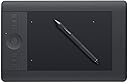


| ASIN | B00EN27ULS |
| Active Surface Area | 6.2 x 3.9 |
| Additional Features | Pen |
| Best Sellers Rank | #493 in Computer Graphics Tablets |
| Brand | Wacom |
| Built-In Media | Intuos pro, Stylus, User manual, Wireless kit |
| Color | Black |
| Compatible Devices | Personal Computer |
| Connectivity Technology | USB |
| Customer Reviews | 4.6 out of 5 stars 759 Reviews |
| Global Trade Identification Number | 00088022181051, 00753218991027 |
| Item Dimensions L x W | 8.1"L x 12.5"W |
| Item Type Name | Wacom Intuos Pro PTH-451 Tablet, 6" |
| Item Weight | 1.45 Pounds |
| Manufacturer | Wacom Technology Corporation |
| Mfr Part Number | Intuos Pro |
| Model Name | Touch |
| Model Number | PTH451 |
| Native Resolution | 1920x1080 |
| Operating System | Mac OS X 10.6 Snow Leopard, Windows 7, Windows 8, Windows Vista |
| Pressure Sensitivity | 2048 Levels |
| Screen Size | 6 Inches |
| Special Feature | Pen |
| Specific Uses For Product | personal |
| Target Audience | Teacher |
| UPC | 088022181051 753218991027 |
| Unit Count | 1.0 Count |
| Warranty Description | 2 years |
A**U
Love it
I have the small Intuos comic tablet as well and I couldn't be happier with both. I prefer the Pro version because it has a better pen and I can rest my hand on other parts of the tablet when I am working. In addition, there are more express keys and the touch ring. The Intuos small is great too but my hand rests on the table because there is almost not tablet real estate aside from the working area. The pen of the Intuos (non-pro version), while not bad, is not as good as the pro version. I wish Wacom made the Pro pens work on the regular Intuos tablets...hint hint The wireless kit feature is really nice. I've had not connectivity problems and the battery seems to last a long time and charge pretty quick. The wireless kit on the Intuos (non-pro) is good too but every now and then I have to reconnect. Note, the wireless kit is included with the Pro version and you have to buy it extra for the regular Intuos tablets. Also, the best bags for each tablet, in my opinion are the USA Gear bags. They are nicely made and have an outer pocket for the cord. The larger bag for the Pro version has an outer pocket that fits the pen as well. So to some up, when I'm on the go and traveling, I use the regular Intuos and when I'm at work, the Pro version. You really can't go wrong with either.
D**R
Just what I needed! Perfect Purchase...
I spent a lot of time agonizing over this decision. I am a professional photographer, and after several years, I decided it might be best to upgrade from the Bamboo tablet, which I had been using. I loved my Bamboo tablet, and remembered how amazed I was when I first got it at its ease of use. Editing pics was so much easier and more enjoyable (if you make complex selections, a tablet is a must). Let me be clear that the Bamboo was perfectly capable of doing everything I do with the new Intuos Pro. The Intuos Pro just makes it faster and easier. As such, I didn't NEED to upgrade, but I really wanted to! The buttons can be programed to do almost anything, and you can even program them to act differently in different programs! The wheel makes both zooming in, and changing brush sizes, a snap. I can do everything seamlessly now (I don't have to take my hand away from the tablet to hit the bracket keys anymore!) Yes the upgrade was a desire, not a need. That said, I have had the tablet for several months now and haven't experienced a moment of buyer's regret! After making the decision to upgrade, the thing I struggled with the most, was tablet size. Now, I understand that what size you want really depends on what type of work you are doing. I can't draw to save my life, and only use the tablet for Photo Editing (sometimes I use Painter to add effects, so I guess I do some simple brush strokes, but its a rare occurrence). As such, I couldn't decide if I should get the small or the medium sized tablet, and literally spent hours reading reviews and suggestions on several sites. I knew I was perfectly happy with the "small" sized Bamboo tablet, but I thought that when upgrading, I might be happier with the medium size. I thought, "Maybe it would allow me to be just a tad more precise with my selections etc." Anyway, I really did wrestle with which size to purchase for over a week. Finally, I realized that it was a silly concern. I use a 24" monitor, and had even used my Bamboo tablet on 27" monitors. I had never experienced a lag, or felt that I was being imprecise with my movements, not had I ever wished for a larger tablet when I worked with the Bamboo. In short, I decided that, " if it ain't broke, don't fix it." I ended up getting the small (which still has a slightly bigger active area than the Bamboo, and is significantly bigger in terms of total dimensions). Recently, I had the chance to try out the medium at a friends house, and have to say that I am grateful that I purchased the small. In terms of how precise you are with regards to how "large" a movement you are making; it turns out that you get into a habit of what you feel comfortable with, and then you zoom in or out accordingly. As such, his medium sized tablet just meant that I had to zoom in closer than I would have on my machine in order to make the strokes I felt comfortable with. This may be a bit confusing (but other editors will understand). The point though, is that for photo editing, the small is plenty big enough, and I've never felt a need for a larger tablet. In fact, when navigating around (outside of PS where I couldn't use zoom in or out to affect the screen map) I found the medium a bit too large.I felt like I had more control with the small tablet, where I didn't have to make these huge movements with my arm. With that said, I think a lot of this comes down to what you are used to. I am so used to my small sized tablet, that using a medium sized tablet felt "wrong." I would guess that if he used my tablet, he would think mine felt "wrong." With that in mind, I love my small Intuos Pro. It does everything I need, and almost everything I want. It is smooth and responsive, and makes precise work a breeze. The software integrates easily with my system and makes its use easy and fun. The tablet is a MUST when I am editing photos, but even just for surfing the web it works great. I am very pleased with this product, and I'm happy that I upgraded from the Bamboo line. I am also happy with my choice of the small size, which is more than roomy enough to edit photos on a large screen monitor!!!
R**L
Wonderful all-around!
I bought this primarily as a mouse alternative to relieve RSI issues, not as a drawing tool. I was skeptical at first as to how easy it would be to use, but after an hour, I am already 90+% as proficient as with a mouse. I also debated whether small is too small (I have a 2560 x 1600 display), but the resolution is high enough that small works well. (Probably works better than medium as even the "small" takes quite a bit of space!) The only problem I've run into is that some programs (e.g. Internet Explorer and Quicken 2015 for me) need to be configured in "mouse" instead of "pen" mode for the app. It may seem counter-intuitive to generally use "pen" mode except for some incompatible apps, but I prefer pen mode more -- except some apps just won't click correctly, etc. in pen mode. The interaction flows reasonably naturally as you switch into/out of the incompatible apps' windows, so it isn't too cumbersome. Otherwise, it is a great tool. The ability to do a quick touch interaction (instead of the pen) when you just need to move the mouse cursor slightly also works well. I haven't used wireless much, so the various comments about the micro USB connector breaking don't bother me, though I did originally think about getting one of those quick disconnect micro USB cables -- but I find that I use the tablet wired most of the time.
M**N
Great product but no instructions for Windows 10 Installation
Intuos Pro Pen small used for Photoshop and LightRoom to edit photos. It's easy to control once you get the hang of not dragging the pin but picking it up and moving it to the point you want. Good control once you get the pressure sensitivity set - I had to set it over half way toward firm to be able to control the ink lay down. The more firm you press the more the impact on the photo. Take some time to watch a few youtube videos on settings for the pin and tablet it will save you time and frustration. Impressive packaging great attention to detail. I gave 4 stars instead of 5 because there are no instructions for Windows 10 installation. The guide says drivers automatically load with Windows 7 & 8 never mentioned 10 and neither does the website. If you're using Windows 10 you have to manually download the drivers, so wasted an hour trouble shooting before I figured out that the drivers hadn't automatically loaded. It would be easy to them to have put a note on the website or at least put in help search but they didn't. The no instructions and no help on their website are my only complaints. Hope this helps you.
R**N
So worth the upgrade cost
I'm mostly just a hobbyist when it comes to tablet use, so I debated a long time on upgrading my old Bamboo tablet (which worked just fine). I waited and waited for the USB cable to stop working so I'd have an excuse, but it just kept working. So I splurged for the holidays and treated myself to a Wacom Pro. It's a huge upgrade. The sensitivity is very noticeable, as is the feel. I don't know that it makes a profound impact on my work, but it's more enjoyable to use. I'm probably just justifying the purchase to myself, but I love my new tablet. Size: I downgraded from my Medium Bamboo to a Small Pro. And I still map down the small to a smaller active area. I mention it, because I was actually looking at the large at first, only because we seem to associate larger with better. But I really don't use a large active area. I want to be able to cover the screen with only wrist movements. I can see how a traditionally trained illustrator would use a large tablet since they bend from the elbow, but I'm just a hack who draws from the wrist. The buttons are nice and all, but I don't actually use them. I always have my left hand on the keyboard and I can assign any shortcuts/actions to there if I need. The wireless is a nice option, but I haven't used it. I've played around with the tilt function, but I find I don't really use that either. YMMV. Update: I stopped use my old bamboo tablet when traveling, taking my Wacom Pro instead. As such, I just use the wireless dongle instead of taking a USB cord. The USB works terrific, I've never noticed and lag. The battery has plenty for several days use; I've never tested it beyond that. Only once did I have a problem where it didn't work - which I assumed was the battery dying. I was out by the pool (not by the water) and it was hot out. When I took it inside to find a cord it started working again. I'm guessing it was the heat, but I don't know if it's the tablet itself or the wireless connection that was suffering from the heat.
M**Y
Great tablet, but miss some of my old tablet's options and design.
I have been using a Wacom Bamboo Fun tablet for years and didn't realize how much better the Intruos tablets are. This tablet has about the same live area as my old tablet, but the accuracy of placement on the computer screen is SO much better. Using the pen to grab a one point rule in InDesign is not a hit or miss like with the old tablet. I have the tablet directly in front of me and rest my hands and arms across it to type, so I have to turn off the "touch" portion of it, otherwise things get really crazy on the computer screen. The buttons on the side is also not ideal for my setup, but I image it works well for most people. I really miss not having a mouse with this tablet. The old one came standard with one and I would switch back and forth to help reduce repetitive movements. Plus, there are just some things that are easier to do with a mouse... Overall, I am very pleased with this tablet. For people not set in their work ways, like myself, this should offer them a lot of pointing and clicking options. For me, the accuracy of selection makes it worth every penny.
A**B
Works as advertised, lives up to its reputation and its functionality is indispensable to my needs.
I use my tablet in a desktop configuration that's optimized for photo editing. First off, it proved easy to set-up. Wacom support was excellent to deal with (wanted one clarification for my system configuration - was it OK to leave the USB engaged even though the wireless adapter was installed & working, too, since I have little occasion to use it wirelessly? Answer: yes). While not critical to me on a daily basis, the wireless capability I'm sure will come in handy for me someday. Another feature that isn't critical on a daily basis for me is the size of the tablet. For my photo editing there's more space available than I need. Fortunately in the set-up process you have the option to map the active area. I've chosen the smallest one and moved it to the right perimeter of the surface (I'm right-handed). The Multi-Touch capability is another one I don't often use for anything serious. Some use it for non-graphical applications, but I prefer my Kensington Expert Mouse trackball for things such as MS Word and Excel - if for no other reason than to switch around the ergonomics since I have repetitive stress problems. Most of the other product features I do use, and consider indispensable. The Express Keys can be set up in an application-specific manner, plus there are plenty of them. Keyboard short-cuts are great, but the Express Keys can't be beat for frequently used functions since you don't have to go to the keyboard. Also the scroll ring is fantastic. Not only can you use it to scroll, but also to alter brush sizes in Photoshop and Lightroom. I think this is my very favorite feature, although it sure is a lot easier to lay in a mask, etc., with the pen than a mouse. It's inherently easier to manually control a pen, and the pressure sensitivity feature really enhances its usefulness - especially for things such as cloning and healing. Last but not least is the pen stand. It's great on a desktop. Keeps the pen standing up rather than lying down horizontally, thereby taking up considerably less desktop area, and making it easier to pick up and put down the pen. Great nib storage feature, too.
E**B
Amazing if it works!
Update 12/15/2019 It slowly started to get better with new driver updates. It worked perfectly for a while but then the pinch to zoom feature would not work on my MacBook. After about 25 back and fourths with support it started working. Now itโs perfect. Only concern is that the pens are pretty cheap and will break. Already on my second one. This seems like a great product, but it doesn't work to its full potential on my Macbook or my PC. The custom controls for the pen, touch and wheel don't work in separate applications such as Photoshop, Illustrator and normal computer browsing. It's smooth and does the job, but I can't customize any hotkeys which defeats the purpose of why I bought it; to have different settings for different apps I use for different things such as apparel design, photo editing and video editing. The latest driver is the worst and I kept getting a message on my PC saying there was no device connected. I had to google for hours to find a solution, not a solid one, but it still works. Again, no customization for the hot keys on PC. On my mac, i had to uninstall the latest driver and install one from a few updates back. The settings don't carry over for general use and for specific program use. So whatever you set them to, they're that way for every program. Also had to uninstall the latest driver for Mac and go a few updates back just to have it be manageable. The main reason I bought this was for ease of use through Adobe CC programs and it is absolutely terrible with the entire suite. I should have bought a basic tablet since this is pretty much how this one functions. If the issues are fixed I will update the rating. Product has potential but there are way too many kinks right now.
I**M
Wacom does it again
The size is perfect for the type of work I'm doing. Took a while to get used to the pen-tablet interaction but it is remarkably sensitive. Glad I got the Touch feature since it works great with my MacBook as an extension of the touch pad. The wireless is also very handy depending on where I'm sitting to do work. Loved the software options and am working on getting better with it overall. It arrived in excellent condition the day they said it would. It is an excellent product and the built in features work very well.
V**E
Ok but wifi not working
Product is good but wifi is not working
S**Z
I got the product but the wireless kit is not ...
I got the product but the wireless kit is not working... And if you return it you have to pay extra money... Your choice..
S**S
The perfect editing tool.
The perfect editing tool. If you've never used a tablet before, do yourself the favour and hide the mouse. Get through the frustration of using a tablet for the first 3 days and you'll be glad you did. My work flow productivity has increased AND my editing process has gone to another level. My only regret is that I didn't buy one sooner.
G**L
A very good tablet with some fairly minor design flaws.
I have been using Wacom tablets as replacement for about 6 years now. I've always had great confidence in there responsiveness and the Intuos Pro lives up to the expectations on that part. Pros: -Fast and responsive -Tilt recognition opens up a whole new world of possibilities with brushes in supported softwares (Photoshop in my case) -The included wireless kit allows reduced clutter on the desktop and simplifies switching between and mouse and a tablet (not the case for me) -The radial menu and configurable function keys are a nice addition and hovering your finger over the buttons brings up a menu detailing the macros associated with each. Well thought! -The battery charge seems to last, but I'll have to update to review for any further details. Cons: -I thought other reviewers were a bit overreacting when they stated it, but the USB cable connection is FLIMSY at best. I've only had to insert it once and the way the connection wiggles around one it's attached is not reassuring to say the least. I can only hope this won't break. While I honestly don't think it will, I would definitely pay attention as to not move the tablet while this cable is connected. -The touch recognition is a step above my older Bamboo Pen & Touch, yet is still too unresponsive compared to my apple trackpad. Simple two finger gestures have to be repeated a couple of times before I can scroll pages. -The addition of the function keys on the side of the tablet make it a bit larger than the old bamboo pen & touch, which might lead to some problems if you want it side by side with your keyboard as the tablet will be sitting a bit more to your side than what I was used to. As far as specs, Wacom really made another beautiful product that meets all my expectations. Small design flaws like the cable, however, stop it short from having a 5-star rating. I'll try and update this review once I've had a bit more time using it for actual photo retouching and drawing purposes.
Trustpilot
1 month ago
2 days ago