Desertcart purchases this item on your behalf and handles shipping, customs, and support to Slovakia.
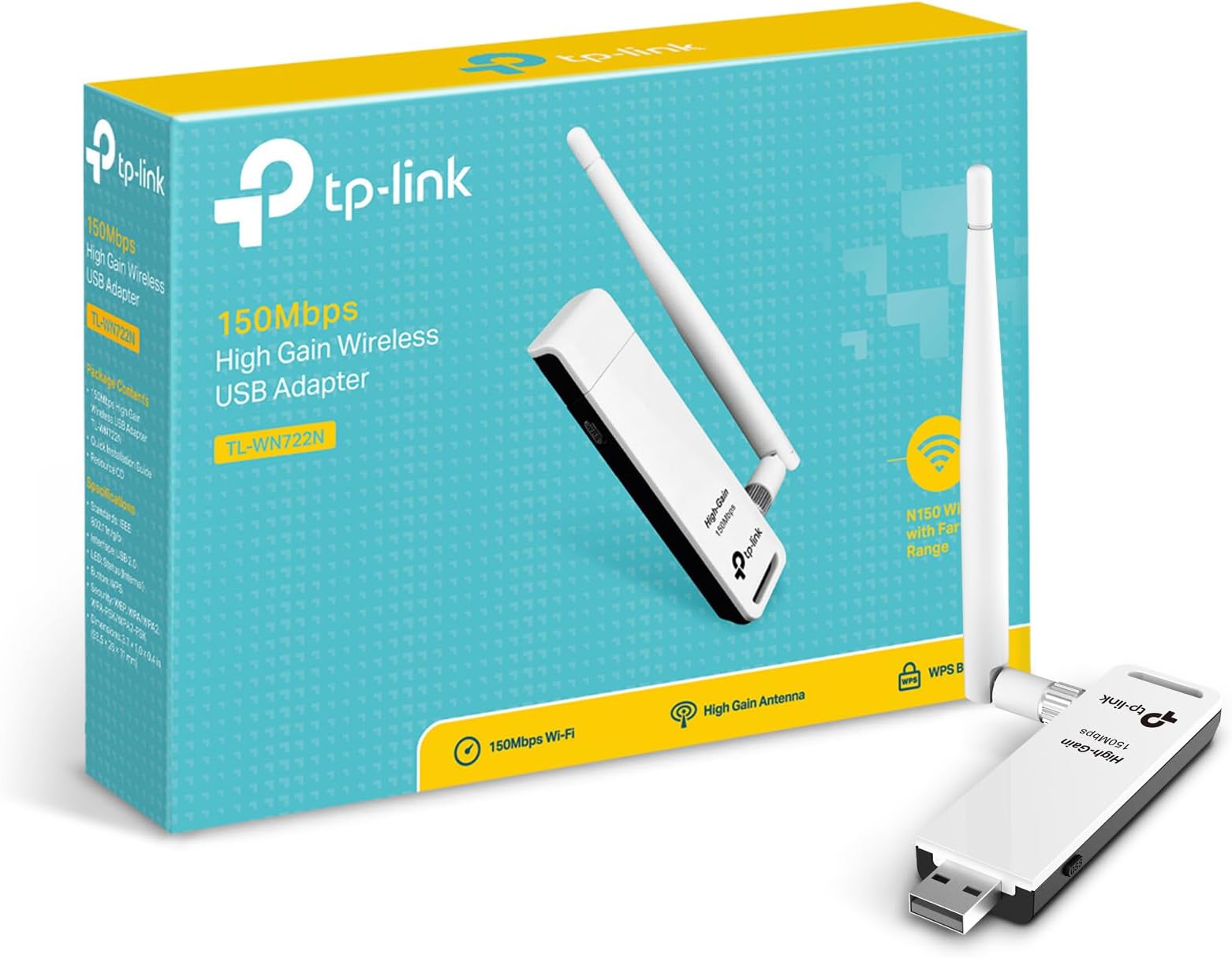
🚀 Upgrade your WiFi game with sleek, stable, and speedy connectivity!
The TP-Link Nano USB WiFi Dongle TL-WN722N delivers up to 150 Mbps wireless speed with a high gain external antenna for enhanced range and stability. Compatible across Windows, Mac OS, and Linux, it offers easy USB 2.0 plug-and-play setup and secure one-touch WPS encryption. Ideal for desktops and laptops needing reliable wireless access, it comes with a 2-year warranty and 24/7 technical support, making it a budget-friendly upgrade for seamless streaming and connectivity.


| ASIN | B002SZEOLG |
| Best Sellers Rank | #167 in USB Computer Network Adapters |
| Brand | TP-Link |
| Built-In Media | Package Contents Wireless AdapterOne USB extension cableResource CDQuick Installation Guide |
| Color | White |
| Compatible Devices | Desktop, Laptop |
| Compatible Operating System Family | Linux, Windows |
| Customer Reviews | 4.3 out of 5 stars 21,133 Reviews |
| Data Link Protocol | IEEE 802.11b , IEEE 802.11g, IEEE 802.11n , USB |
| Data Transfer Rate | 150 megabits_per_second |
| External Testing Certification | CE, FCC |
| Global Trade Identification Number | 06935364090456 |
| Hardware Interface | USB 2.0 |
| Item Dimensions L x W x H | 3.7"L x 1.02"W x 0.43"H |
| Item Part Number | TL-WN722N |
| Item Weight | 6.4 ounces |
| Manufacturer | TP-Link IP Cams |
| Mfr Part Number | TL-WN722N |
| Minimum Required Operating System Version | Windows XP |
| Model Number | TL-WN722N |
| Number of Items | 1 |
| Product Dimensions | 3.7"L x 1.02"W x 0.43"H |
| UPC | 845973050467 |
| Warranty Description | 2-year warranty |
A**X
Gets great reception, easy install, external antenna
I noticed my desktop PCI networking card wasn't able to reach my network in my current setup (subletting an apartment for a month, using a friend's wifi from another apartment). I tried two USB adapters, only one of which was able to reach the network I'm trying to connect to, and then not very reliably. This adapter maintains a consistent connection with 40-60% signal strength (which is good enough given the circumstances). It comes with a USB extension that lets you place it in a few different places for better reception. Installation was fairly easy, the drivers come on a mini CD (or DVD?) and install without too much hassle. The external antenna means better signal strength and upgradability (perhaps), which is a plus for me. Also, it works with Linux without any extra drivers which is great. At a great price + Prime shipping I'd give it a go if you need a better network adapter. My minor complaint is that I had to do a good bit of positioning to get the strength I'm getting. I actually have two USB extension cords that let me place this thing on top of my desk. While I understand you can't work miracles for less than twenty bucks I wish I could just leave it plugged into the back of my tower. One other minor complaint is that the wifi utility (which works much better with this than Windows' default) doesn't work too well with fullscreen applications. Netflix/YouTube videos drop out of fullscreen very frequently, and fullscreen games will minimize likewise. In order to play any sort of game I had to exit the utility in the taskbar, which isn't a huge deal once you're already connected. Including the two minor issues above, I hesitated give it 5 stars because whoever was responsible for tendering the package to FedEx did not hand it over for over 24 hours. I ordered one-day shipping on a Thursday afternoon and, because FedEx doesn't normally ship on Saturdays, didn't get my order until Monday. This was either a major oversight or excessive laziness, but support was friendly and refunded my shipping costs (only $4 with Prime, I suppose) so I'm not turning tail on Amazon anytime soon. Plus an adapter like this for $20? I'd wait a full month for shipping.
S**S
Ultra user-friendly, not as sensitive as I expected
I had high hopes for this little dongle, but reviews maybe set the bar a smidge too high. That said, it's a great purchase. I bought it with the hope of amplifying signal reception on my laptop. It doesn't do that. In my living room, I get 4 bars with my laptop, and in my bedroom 1-2. I tried plugging this baby in and while the ease of use is indeed great (lit right up, installed drivers automatically, went right to work), I got no more bars in the bedroom with the antenna than without it. HOWEVER, I put the TP-Link to use on a desktop machine that previously had no connectivity, and for that purpose, it's great. I'm very happy with the purchase. So, if you're hoping to amplify your laptop signal... my experience has been that it's no more powerful than a decent laptop's built-in receiver. Now, I should note that my laptop is newish -- bought November 2010 -- so maybe it's wireless receiver is already pretty good, and if you are trying to get a better signal for an older laptop, you might experience a bump in your signal by using this dongle. ALSO, while the signal remains low on my desktop machine (2 bars) it has been VERY stable and reliable, even when streaming video on Hulu. So that's noteworthy. Maybe a low signal isn't the biggest deal in the world, as long as it's stable! Overall - I'd say you really can't go wrong for the money, as long as you know what it's good for. I did a lot of comparison shopping before picking this one and here's the overview: A++ for ease of use and basic functionality -- converting an offline device into a wireless device works great. (Note, installing drivers was a breeze both with the laptop -- which automatically pulled the drivers off the internet since it was online -- and the desktop machine, which installed off the included CD.) C for extra signal pick-up relative to a decent quality modern laptop. Got the same number of bars on my laptop with/without the dongle. A for signal reliability (signal reliability might in fact be better than the laptop - given equal # bars - I haven't done enough comparison of the relative stability of the signal between the laptop and the dongle with the low signal strength - but so far I've never gotten better than "Low" signal strength from the dongle, and yet I've never had my connectivity fail!). A+ for sleek design -- has antenna, but it's not unwieldy, so you can plug it directly into a laptop or desktop USB port without its being a nuisance, or you can connect it to an extension cable (which I had to do simply because the signal behind the desktop machine was only one bar, whereas sitting on top of the desk was two bars) -- ***IT DOES COME WITH A SHORT (maybe 2 or 3 feet?) USB EXTENSION CABLE to reach from a machine situated under a desk, up to the top of the desk, let's say. A++ for price -- Srsly cheap for such a handsome and functional little piece of machinery. I'd say if you are looking to improve upon your (already quality) laptop sensitivity, probably look at other dongles with clunkier antennae, but if you want to convert an offline (or irritatingly wired) machine into a wireless machine, AND/OR improve the signal STABILITY for a laptop that tends to lose its connectivity frequently due to low signal reception, then this little number is probably a good bet.
V**4
Works under windows 10, but doesn't include drivers for it (read on info how to fix) - no guarantees though
I had the more advanced version of this adapter, but my dog ended up breaking it (TL-WN822N); since I work from home so often, I decided to replace it with something similar. Now this adapter and it's big brother have the same problem; there are no windows 10 drivers for it. You CAN just plug the stick into your computer and use the drivers that come on the CD, but you'll get stuck with around 5 mb (megabits) per second no matter what internet you have. Go to the TP site and download the driver that HAS THE INSTALLER FILE; as of right now, the file is called TL-WN722N_V1_131113. Download and extract the file, DON'T INSTALL IT YET. Then download the latest driver file, as of right now it's called TL-WN722N_V1_140918. Extract file and cut and paste the correct windows 10 drivers for your system (32 bit or 64 bit) FROM THE WINDOWS 8.1 DRIVER FOLDERS. Then go to the analgous folders in the TL-WN722N_V1_131113 file (they only have windows 8 drivers), delete them and paste the new ones. You need to RUN THE INSTALLER to get the updated drivers to install. My connection went from 5 mb per send to over 40 mb per second (with a max speed of 5 MB {Megabytes...yes that's correct, per second)}(download) by using the "updated" drivers. I also use Fedora Linux 23 on my main system; it had the driver package already installed, but if your linux distro doesn't, this chipset is really well known as uses the ath9k driver...you can download and compile it from several sources. Chances are your linux distro will already have a package you can download an install instead of having to compile it. EDIT: The 4 stars are for the clear lack of support on TP-Link's end; Since windows 10 will be the last "windows" I doubt it will matter much, but other companies (such as linksys/Cisco) take the time to product products which don't have to be hacked in order to get working on new hardware/software.
T**F
This little thing is awesome!
---------------------------------------------------------- UPDATED: August 21, 2013 (Update section below) ---------------------------------------------------------- Installed January 14, 2011 and still excellent. Here's my take on the TP-Link TL-WN722N Wireless USB Adapter: ------------- POSITIVES: ------------- ** It really, really works like mad. ** I get constant download speeds of 12Mbps+, which is close the the max of my internet bandwidth. - It's very cheap cost-wise for the great performance it gives you - It's small(ish), though it will look big connected to your laptop - Comes with a 3' USB extension cable which I definitely recommend using. It helps position the device, and keeps it from crowding your laptop or from being destroyed by being knocked out of your PC's front USB port. - Has a diffused green LED under the white plastic to let you know it's working, instead of the blinding blue LEDs that everyone uses these days. The light turns off when it's not powered (like when you hit Standby on your PC). NOTE: It's still annoying in a dark room when I'm trying to sleep, but a few post-it notes helps that. - The software is relatively simple to install and use, and allows you to use other products to manage your WiFi instead. - The current driver, software, and documents come on a mini CD and are all up to date with what's available on TP-Link's web site - The documentation is good, but it could use some more detail. ---------------------- MINOR NEGATIVES: ---------------------- - The TP-LINK Wireless Client Utility is functional but could be more intuitive. A configuration "wizard" would be a good improvement for manual configs. (It has been updated as of Jan 5, 2012 - see below) - Manual configuration (which you need if your network is securely hidden and requires a pass code) isn't well-documented, though you will be able to get it to work with the document, and maybe a little trial and error. If your setup is totally open security-wise (this would be BAD), you will have no problem with the software. - Even if the driver is installed incorrectly, the client utility may report enough information to make you think it is installed. When in doubt, do a complete removal of the software and drivers and re-install. - The QSS software that comes with the device is ONLY usable with other TP-Link products. Don't bother installing it unless you have a TP-Link Router/Access Point that has QSS built in. (As of the client update on Jan. 5, 2012, it appears to be installed automatically) ------------------------ UPDATED 08-21-2013 ------------------------ Nothing new to add! This thing still rocks. No news is good new, right? Thank you everyone who chose to mark my review helpful! ------------------------ UPDATED 01-23-2012 ------------------------ - I've kept track, and this device has worked well even with interference from Coronal Mass Ejections from the sun (sunspot activity), though I have noticed that the performance decreases (could be other things along that long internet path, as well). - I now have a TP-Link TL-WA901ND 2.0 Access Point, which this device works well with. Unfortunately is does NOT connect at the advertised "150Mbps" potential speed when it's configured to do so, but I never really expected it to. My max internet connection of 13Mbps is far below that high rating, anyway. - The latest WiFi utility for this device is up on TP-Link's web site as of Jan. 5, 2012, and I'm a bit disappointed with it. On the plus side, it is probably simpler to use - which is a good thing for most users, but it's been dumbed down to remove all of the extra connection info power users like me appreciate. The message windows are also annoying and the English grammar is sometimes embarrassingly wrong. It also looks a bit cheesy compared to the previous utility version. At least it works well. - It is difficult to tell if the actual hardware drivers have been updated, because software info on the page for this device is really incomplete. It looks like they are not updated since I originally posted this review. - I still benefit from disconnecting and reconnecting the device once in a great while, but the problem that causes the lowered performance could be my PC, the access point, or electromagnetic interference. Hard to say. - To date, 4 people were helpless in the face of my review - maybe it put them to sleep. Thanks very much to everyone who took the time to click "Yes". ----------------------------- My installation experience ----------------------------- A friend of mine needed a WiFi adapter since she moved to a location that wasn't wired, so I recommended this to her based on the great reviews it's received. She successfully and easily installed this device on her work laptop, and was extremely impressed with it's ability to drag a much better signal out of the almost inaccessible 802.11n WiFi router located down stairs, the signal of which is blocked by many walls and turns. She also needed to install the device on her personal PC. Unfortunately we spent hours over chat trying to get it installed and working, and FINALLY got it done after completely removing the software and drivers that she had installed, and then reinstalling those drivers with my guidance. It was only at this point that she said, "Oh yeah, I kind of passed over that part" where XP asks for confirmation to install an unsigned driver. AHHHHHHH! Well, now it works. :) The signal is not fantastic, but it's 4 times better than it used to be (for her laptop) and is good enough for her PC. It definitely works. So one lesson for you is: Please do yourself a favor, and let your operating system install the driver properly. ;) The night I helped my friend with her WiFi, I received and installed my own TL-WN722N adapter, to help her through the install process and to replace the D-Link 4300 router I was using as a WiFi receiver (firmware v1.8 has bridging). After installing this little thing and adjusting the antenna, I got download speeds almost twice as fast as before to the aging Linksys 802.11b-only wifi router downstairs. I then spent some time replacing that Linksys device with the D-Link 4300, turned on Super-G, and got almost 13Mbit down and 1.7Mbit up, which is more than four times what I was getting before on download and upload. The download speed varies between 8Mb-12Mb - it probably hits 12mb because of Super-G infringing on other people's signal space :P - but the upload speed has been really constant at 1.7Mb or so since I installed it, even to the Linksys router. The download speed is almost as good as I can get by plugging in a 75' network cable directly to the router. So this little thing really rocks! FYI, DSL Reports has an excellent set of speed reporting tools, as well as info on increasing network equipment and WiFi performance. Check it out! I'd enter a link, but Amazon would probably only delete it. That's it, another novel for my reviews. I'll update this over time if anything new happens...
C**E
"A SUPER GOOD DEAL!'
SUPER GOOD ITEM!. 'I Love This WiFi Link It's Really That Good!. PROS: It sets up right out of the Box, Now I run primarily Linux on my Computers so -I Cant- swear about how this will work on say Windows or MAC, But It runs swell otherwise, Didn't need the install disk as my computer installed it automatically, I can Surf, Download and even pick up stations far away as I currently live in a small city yet I can pick up from downtown easily!. To sum up i can surf, Upload book and cover materials to my publishers, And also use it to hook up my Lap-Top if I want to connect from my office or workshop and all with the same Link, So not bad for whats really a 10 buck deal etc!..... TP Link is doing something rite here as this is the first Link I've ever had that doesn't get hot enough to fry eggs with, I have to travel soon and will probably buy an extra an a spare as the cheap travel inns overseas don't have good strength on their WIFI but this will pick them up easily!. CONS: NO major ones except the little stubbie antenna provided didn't give me quite enough range to make my situation workable but in trying differing spare antennas I had as extras from an earlier device I found that a 'Mid Sized' antenna say a 6 inch worked rather well as it brought in weak areas better like my garage say, Whereas my long or 12 inch just brought in too much static, Plus other peoples printers too and thats a big time No No, So depending on your area and circumstances stay moderate and enjoy the results. etc!. But my advise is buy and use with confidence!,. TO CLOSE: As usual AMAZON got my item wrapped and shipped in record time so 'Kudos' to Amazon for a job well done!..... Nuff Said!. Indiana ED,.
C**0
Holy crap. I finally got it working after a few ...
##I am aware that my review is a bit confusing, since I am covering my experience in using this in several renditions of Kali, including but not limited to... (a) Kali VM in Virtualbox (b) Kali hard drive install (c) Kali Nethunter 3.0 on a rooted tablet. In a short while, I am going to edit this review, once I think my new revision is more appropriate for my liking. I just realized, that I probably should assume that our readers understand how to use Kali and Linux, and that the guides I was typing below (on enabling and using Monitor Mode) is completely unnecessary. Meanwhile, I will assure you, that as soon as you ditch using Virtual Machine versions of Kali, a lot of your device recognition issues will be gone. ## UPDATE (9/13/16): This adapter does work with NetHunter Kali (the mobile tablet version of Kali). I connected it with my fancy new toy (a rooted Nexus 7 tablet with Nethunter installed), and after about a week of fumbling with the settings and raging I finally got it to work. Note, that it is MANDATORY that you need a OTG USB Y-Adapter Cable (OTG = On-The-Go), OR, you can buy a POWERED OTG hub from Amazon. I have tried going to Fry's, and aside from the ordinary unpowered OTG cables, they got nothing else. You might also need a double-sided male-to-male USB 2.0 cable if you are going for the BadUSB MITM attacks as well. The reason why you need more specific cables and connectors is that there is a combination of power issues in being able to keep this adapter running off the Nexus 7 tablet. Power issue #1, Lollipop Android's lousy power-management settings, where it would cut the power on your adapter before it is allowed to operate normally (you can look at your "dmesg" logs to confirm). Power issue #2, the Nexus 7's hardware doesn't really provide enough juice through the cables to have the TP-Link adapter running reliably. It might turn on and off again unexpectedly if you are running something like Airmon, Aireplay, or Mana Wireless Toolkit for example. UPDATE (8/27/16): Disregard what I said previously. As it turns out it's not a 100% certain fix for recognition issues through VirtualBox --> Kali VM. It MAY help. But after rebooting a few times and attempting to reenact my same steps it failed to recognize the dongle properly again. Out of frustration and keyboard breaking RAAAAGE, I decided to say, "f--- it", and went ahead and installed a full copy of Kali onto a 20GB partition I made in my hard drive. Surprisingly, the newest distro version completely recognizes the TP-Link, and confirms that this wi-fi dongle... (1) WILL WORK (2) WILL ARP INJECT(one of many methods) and in the event of any recognition issues (3) CAN BE FIXED THROUGH TERMINAL. The Kali distro you are looking for should be "32/64 bit Version 2016.1". So far that's the only trouble-free iso I have seen since I been playing with Kali in two years. A previous version I tried installing before (late 2015) had major errors in it's directories (a dozen or so mislabeled folders), despite multiple installation attempts, disk images redownloaded and checksums against the hash. I also played with "Katoolin" in Ubuntu (really bad idea), tried to create a Persistent Live USB version of Kali from Windows (not so bad of a idea), and loaded Kali within VirtualBox (mostly a waste of time, aside from having a safe environment to analyze shady looking files). I have tried every alternative before resorting to attempting to install Kali again on my hard disk. I recommend just dumping that VBox workaround that people are frustrating themselves over, and as long as they have experience, or friends, in installing Linux, just go ahead and get your machine ready for a legitimate install (even the Kali GUI installer is not particularly informative and leaves out a ton of important details, make sure you know how to do your byte-to-gigabyte math and which "sda" "sdb" or partition properly represents where you WANT to install). You will not be able to create a "Kali Persistent Live USB" WITHOUT a working Linux distro installed on your hard disk, and third party solutions vary in mileage and tech support (and even English apparently). So let's not like, frustrate you any further. Before I depart, I want to notify you of a few things you definitely need to know before playing around with Kali + Wifi Dongle. Memorize these terminal commands in this order... so you can troubleshoot any issues quickly without having to wander around the internet aimlessly looking for answers. (a) "ifconfig", lists all of your network interfaces. Your main Wi-Fi card and this TP-Link should show up as "wlan0 or wlan1" or something like that. The dongle will not have a LAN IP address. Thats the one you are going to set in monitor mode. (b) "airmon-ng start <wlan0 OR wlan1 OR whatever>.". Begins "monitor mode" for your network card. You want to include whatever wlan number your "ifconfig" command said was TP-Link (it should be in the list as Atheros) (c) "airodump-ng <wlan0 OR wlan1 OR whatever>". This lists all of the available routers/devices in range of your TP-Link, available to attack. For beginners, I suggest something like one of YOUR OWN machines in your LOCAL network. Or you know, your neighbor's poorly configured WEP router. I didn't tell you that last one, I'm not responsible if you get beaten up over this. And besides, I barely got started, and have not learned a thing yet about stealthy use of pentest tools. (d) "airmon-ng check kill" AND "service network-manager start". This is your "Oh S---" button. In the event that you fail in a Wi-Fi attack, lose your session, and you need to immediately restart your process, the first one disables monitoring mode, the second command restores functionality to your TP-Link (the light will come back on, you might get internet access back in Kali). Repeat steps (a) to (c) again. (e) "fern-wifi-cracker". It's a GUI version of several Wi-Fi cracking tools combined together. I didn't really like this, but it did help for starters in letting me understand how all of Kali's WEP/WPA cracking works. It's sort of like Armitage but for aircrack-ng, aireplay-ng, airodump-ng and airmon-ng. It's not very detailed in describing what's going on in the background. I often had to run Wireshark alongside of it so I can observe if my laptop is doing anything. Ultimately it's better to understand the command line, so you can understand a more detailed readout of what's going on. You can then customize your attacks to make it more successful, and open more options than what a GUI would offer. It pretty much applies to everything in Linux (setting LOCALHOST ports and customized PAYLOADS in Metasploit Framework for example). Finding credible documentation and guides for Kali is incredibly hard without professional and academic help (most Ubuntu guides work though, a few changes needed). Try looking at all of those downvoted YouTube videos posted by dumb teens, with terrible music in the background. After I graduate with my Accounting degree, I plan on reenrolling back to a local community college for the CHFI Program (Computer Hacking Forensic Investigator), to better round out my KSAs in spite of my criminal record. But for now, a good YouTube source is this guy named "Ed Walsh" on YouTube. He sounds like a real Revenge of the Nerds Casting Call Fellow, but this guy is awesome. OLD POST (8/25/16): Holy crap. I finally got it working after a few days. This is Kali Linux on VirtualBox VM, Version 5.4.1, with the extension pack installed on a Windows 10 system. It's finally detected in the distro, and even Fern Wifi Cracker works with it. But since I do not know which one of my Googled fixes actually did it, i'll list them all for you. 1. Deleted the UpperFilters registry key using RegEdit (follow this guide: [...]) 2. Reenabled USB 3.0 support instead of the 2.0 that everyone was suggesting in the VirtualBox USB Settings (requires installation of the extension pack) 3. Deleted the USBPCAP File from Windows Add/Remove Programs, that was added by the WireShark Windows installation. Apparently it causes problems with the USB support for VBox. So better get used to running WireShark with Kali. 4. Manually installed the "Windows 10 Drivers" FIRST before doing anything to the guest machine. It's actually Windows 8.1 drivers. Go into your TP-Link installation disc that came with the package, go to this directory, "E:\TL-WN721N TL-WN722N\Driver Files\Windows 8.1 64bit", highlight everything and drag it into this directory, "C:\Windows\System32\drivers". Then go to this directory to run the setup file, "E:\TL-WN721N TL-WN722N". If you still have problems, right-click Setup.Exe, Properties, Compatibility Tab, and check the checkbox and select in the Drop-Down, "Windows XP Service Pack 3" as your compatibility mode. (If the installation bar in the installer froze at any point, you dropped the driver files into the wrong directory, so backtrack and try again). 5. Finally, you have to ensure that the Kali VM can detect and install it's own Wifi-Dongle drivers on IT'S OWN. So follow this video down to the letter. Make sure you kept your dongle INSIDE the USB port as you are creating your USB filter, but RIGHT BEFORE you boot up the Kali VM, you disconnect the USB through the Safely Remove Hardware AND manually remove the dongle out of the port. 6. Don't forget to select USB 3.0 for your USB filter if your dongle is plugged into a 3.0 port. That was the final thing I did out of frustration before it finally got detected (tiny red blinky light on the USB icon = good, never seen a green blinky light but it still works). I was pretty close to breaking my keyboard with RAGE, but I think I covered everything.
A**A
Another good TP-Link product
I get this as my third network related TP-Link product, I get first a "TP-LINK TL-WR1043ND Ultimate Wireless N Gigabit Router" (Sorry the new form of amazon to write reviews byte me and I was unable to put the proper link). So this USB Adapter connects easily with the router all the indicators of connectivity are better than good across all my apartment, is an small 3 rooms place but everywhere the signal is strong. I get this to give wireless connectivity to my desktop computer and to this time (about a week) there is no complains about, just works as expected. This comes with an USB extension cable of 1 meter (40") that is enough to take the adapter outside of the back part of the computer to place in better position to take advantage of it high gain antenna. I'm using it on a windows 7 x64 machine, the installation was simple, you need to cancel the auto detect by windows and then use the driver disk that comes with the adapter, in my case I was unable to cancel the auto detect but It was simple to delete the new hardware found and the I use the driver CD. The driver CD will install a software that will auto-start with windows any time but will keep you informed about the quality of the connection and signal. The bottom side of the adapter has a hole that you can use to hang the adapter from a upper side and increase the quality of the signal, this was a really good surprise because allows to place the device in a variety of places in order to improve the connection quality if is needed. The High gain antenna that have the USB adapter is longer than the adapter itself, have great range of movement, you can rotate it 360° on its axis and max 90° of movement the side. Also you can detach the antenna that comes with the USB Adapter to put other bigger antenna, just in case you need that. Overall is a great Wi Fi Adapter, the speed provided is good enough for a home network, so I'm really happy with the TP-Link brand because this is the second piece of hardware I get from them that is cheap, but well done and works as expected.
J**N
ALFA AWUSO36NHA VS ALFA AWUSO36NH VS TP-LINK WN722N
AWUSO36NHA VS AWUSO36NH VS TP-LINK WN722N I purchase the awuso36h and then it went dead. It served me a good time. I decided to purchase the awuso36nh which is a 2w wireless adapter. This adapter was connected to my 15dbi Omni-directional antenna which is 40 feet above ground. I must confess it worked excellent until my alfa 1w booster (failed within a month). One thing for sure with this adapter it is very durable. ( I have this adapter for over a year. after my booster died I began to use this adapter alone and I picked up about 15-18 wireless access points, mostly with a 3 bar signal. my internet connection faded from time to time because of distance and interference and other factors. I decided to research on other adapters that has good receptivity and found several post as to the awuso36nha and how sensitivity it was to weak signals. I also found post where the awuso36nha is good for hacking and packet injection in backtrack. i did some more digging and found some facts ,that is, the awuso36nh has sensitivity of around -71dbm while the awuso36nha has a sensitivity of -91dbm (excellent for weak signals). note these are all theoretical statements. i even read a web page that hakshop.myshopify.com as to how the auwso36nha is excellent. when the awuso36nha arrived i downloaded the latest drivers from the official alfa site.I tested use the awuso36nha for six months.In addition i used the AWUSO36NH for over 1 year. My tests and hard work came from Wireless Penetration and Comparative analysis in real life situations : NO. OF NETWORKS DETECTED AWUS036NH-roughly 10-14 Networks AWUS036NHA-roughly 22 Networks TP-LINK WN722N- 3 to 4 networks ( i am assuming that the circuitry for this adapter wasn't designed for an amp with long cabling to outdoor antenna otherwise it worked well with a small indoor antenna) TRANSFER SPEED AWUS036NH- 1 Mbps to 5Mbps for most networks AWUSO36NHA- 20Mbps TO 54Mbps for most networks TP-LINK WN722N- connected to 1 out of a total of the three networks in detected SIGNAL QUALITY (with a 5W booster) AWUS036NH-Excellent (4 bars maximum for most networks) AWUSO36NHA- Very Poor (1 to 2 bar signal for most networks-but was able to connect with better speeds than the awuso36nh) TP-LINK WN722N- 1 to 2 bars INTERNET STABILITY AWUS036NH- unstable internet connection for weak signals AWUSO36NHA- fairly stable internet connection for weak signals TP-LINK WN722N- unable to test thoroughly due to 3 access points detected RANDOM DISCONNECTIONS AWUS036NH- Adapter does not shutdown randomly. AWUSO36NHA- Adapter shuts down randomly, you have to manually plug and unplug adapter after a full day or 2 days of work. TP-LINK WN722N- no random disconnection observed for short period of use HEAT GENERATION AWUS036NH- Adapter gets hot quickly AWUSO36NHA- adapter gets slight warm TP-LINK WN722N- adapter gets slight warm HANDSHAKE TESTS- BACKTRACK 5 R3 AIREPLAY SUITE AWUS036NH- Not excellent in grabbing handshakes- have to try a couple of times for the adapter to get it right AWUSO36NHA- Excellent Handshake grabber! TP-LINK WN722N-adapter gets slight warm REAVER 1.4 IN BACKTRACK 5 R3 AWUS036NH-Authentication with networks well and packet injection works fairly (16-20 pin/sec) AWUSO36NHA- Authentications works well and packet injection is fast (4-8 pin/sec) however reaver sticks due to adapter random disconnection TP-LINK WN722N- unable to test due to fewer unencrypted access points detected. CONCLUSION 1: the alfa awuso36nha is a good adapter when compared to the awuso36nh, that is, the awuso36nha provided a stable connection with good transfer speed even though it Gives A 1 TO 2 bars signal strength. On the other hand the awuso36nh provide a GOOD connection with less transfer rate and is not good at catching weak signals. so what is important? TRANSFER SPEED vs SIGNAL STRENGTH?.. all two factors are important but i would go with signal strength since without signal you cannot transfer.. UPDATE: ALFA AWUS036NH IS SUITABLE FOR INDOOR USE WHERE ACCESS POINTS ARE RELATIVELY CLOSE HOWEVER IF YOU HAVE A AN OUTDOOR ANTENNA, THE AWUS036NHA IF VERY GOOD AT PICKING UP MORE ACCESS POINTS AND CONNECTS WELL TO NETWORKS (DESPITE RANDOM DISCONNECTIONS AT TIMES AND A 1 TO 2 BARS SIGNAL STRENGTH). THE AWUS036NHA IS THE ONLY ADAPTER WITH THE ATHEROS 9271 CHIPSET THAT IS BUILT INTO A CIRCUITRY THAT IS WELL DESIGNED FOR LONG RANGE CONNECTION AS COMPARED TO TP-LINK WN722N (I WILL SEE IF I WILL TRY TO GET A VIDEO ON YOUTUBE TO SHOW THE COMPARISON BETWEEN THE THREE ADAPTER...ALL FOR NOW
F**O
Excelente antena para uso doméstico u oficina
Excelente antena, permite tener internet y compartirlo como repetidor de wifi. Útil para lugares lejanos del módem o router. Llegó muy rápido el paquete como 2 días máximo y muy bien embalado, la antena ayuda y encima tienes un cable de 1m para tener más espacio en tus entradas usb La estoy probando para reproducir los videos de las CCTV por wifi y hasta ahorita no he tenido fallas, mantiene una conexión sin interrupciones (claro, no deja de ser bueno mejor por cable). Mi caso sería para trabajar en oficina, desconozco si pueda mantener la conexión para juegos online La antena es desmontable
T**R
Very good device
The signal for this device is brilliant, can connect to the Wi-Fi from distances never imaginable with other PCIe/M.2 devices. Technical Review: This device is the V2 meaning that it comes with the realtek RTL8188EUS chipset instead of the atheros chipset that natively supports monitor mode. After about 4 hours of searching around for solutions I found a custom driver by aircrack-ng on github which allowed this device to be used with monitor mode.
A**R
Must have.
IYKYK
K**C
رهيب
سعرها بسيط مقارنه بادائها , انا استعملها لكالي لينكس مايحتاج تعريفات للادابتر بس اشبكه و يشتغل على طول , مداها كبير و تلقط الشبكات البعيده و شي حلو انه يجي معها سلك يو اس بي (زي التوصيله) عشان تقدر تغير مكان الادابتر براحتك , يفضل تحط الادابتر جنب الدريشه عشان تلقط شبكات اكثر
K**M
ممتازة تدعم وضع المراقبة على لينكس
يدعم تشغيل وضع المراقبة على نظام لينكس
Trustpilot
1 month ago
1 month ago