Desertcart purchases this item on your behalf and handles shipping, customs, and support to Slovakia.
🎞️ Preserve your past, power your future—digitize memories with one touch!
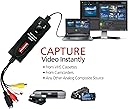
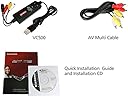
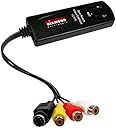
The Diamond Multimedia VC500 is a USB 2.0 video capture device designed for professionals and enthusiasts to effortlessly convert analog VHS, Hi8, and other legacy video formats into high-quality digital files or DVDs. Featuring a one-touch hardware button, broad device compatibility via Composite RCA and S-Video inputs, and bundled Honestech software for editing and DVD authoring, it supports Windows 11/10 and macOS platforms. This compact, plug-and-play solution is backed by over 30 years of trusted Diamond Multimedia support and a one-year warranty, making it the go-to tool for preserving priceless memories in a digital age.


| ASIN | B000VM60I8 |
| Best Sellers Rank | #32 in Internal TV Tuner & Video Capture Cards |
| Brand | Diamond Multimedia |
| Built-In Media | One-touch Video Capture & Share/usb To Composite & S-video |
| Color | One Color |
| Compatible Devices | Camcord, Personal Computer, Videocassette Recorder |
| Connector Type | RCA |
| Customer Reviews | 3.8 out of 5 stars 6,919 Reviews |
| EU Spare Part Availability Duration | 1 years |
| External Testing Certification | Non |
| Finish | Composite |
| Global Trade Identification Number | 00031112829227, 00757448005080, 05147841663966 |
| Item Dimensions | 4 x 1 x 1 inches |
| Item Type Name | Video Capture |
| Item Weight | 7.2 ounces |
| Item dimensions L x W x H | 4 x 1 x 1 inches |
| Manufacturer | Diamond |
| Mfr Part Number | VC500 |
| Model Number | VC500 |
| Number of Items | 1 |
| Number of Ports | 2 |
| Package Quantity | 1 |
| Power Plug Type | No Plug |
| Specific Uses For Product | personal |
| UPC | 132018346143 734911108370 115970739468 112840389341 132017723440 168141351129 033587175854 696582192839 044111921632 163120866946 782386063120 854587014826 734911366497 031112829227 757448005080 168141639982 |
| Unit Count | 1 Count |
| Warranty Description | One Year |
| Warranty Type | one-year warranty |
U**V
A true DIAMOND among countless USB VHS capture devices!
J**T
This was exactly what I needed to copy VHS to DVD
I came across this product while searching the internet for video capture software/equipment. This was the highest rated AND cheapest product on the market. I was skeptical that it was NOT available locally and that all the stores are pushing the comparable Roxio product for nearly 3x the price (with less favorable product reviews). I took a chance and ordered the VC500, and I'm quite pleased! I had, what appeared to be, a rather unique need for this item. I own a few movies on VHS that were never released on DVD. I attempted to copy these movies on a friend's VHS-to-DVD recorder but discovered that the movies were copy protected and were rejected by the recorder. The VC500 is NOT affected by "copy guard" and I was able to capture the video to my PC then burn to DVD. Although it was quite a time consuming process, it worked well and resulted in a pretty good quality DVD copy of a VHS movie. Please note: This device does not work miracles! Video tape recording were not in HD. They were low rez and sometimes grainy. If there is wear or damage to the tape, or tracking issues with the VCR, these blemishes will be present in the captured video. However, if you have a good clean VHS tape, and a high quality VCR, with clean heads and adjustable tracking, then capture your video, burn to DVD, when you playback the DVD in an up-converting BluRay player, you may be shocked at the quality of the final product. You just can't have unreasonable expectations. Pros - This product is dirt cheap! It works with any device that uses Red/White/Yellow RCA cables, or S-Video. It can capture still images from video. The capture software is ridiculously simple to use. It comes with a 30 inch Red/White/Yellow RCA cable. It also comes with broadcast software (I have NOT used it, but I understand that it allows you to stream live video and upload directly to your You Tube account.) Cons - The instruction manual is in poorly translated Chinese, and ONLY explains how to hook up the device and install the software. There are no instructions for how to use the software. You just have to play around with it til you figure it out. The video editing and movie making software that comes with the VC500 is junk. (I did try to use it and after 4 hours of burning I ended up with a DVD that wouldn't play.) During installation I receive a message that this was not Windows Logo approved software and to basically continue at my own risk. (It didn't seem to cause any problems with my computer.) Tips - Use your normal "New Software Wizard" to get started. Depending on your version of Windows the drivers may load automatically. Make sure you have lots of RAM and plenty of free hard disk space. Video capture is very sensitive, so I found it is best to reboot before starting and don't open any other programs. Avoid using the editing and burning software that comes with this device. I used Nero and ended up with very professional looking results. Other uses for this product include: transferring home video, capturing video clips for presentations, capturing still images from video, recording or broadcasting from gaming consoles, capturing stereo audio from analogue devices (that play cassette tape, reel-to-reel, vinyl, etc.).
R**M
Worked on Win 7 64 bit system, with a bit of effort
I am not a computer expert by any stretch, but as my budget has shrunk I have had to rely on my IT guy less and less and myself more and more. So, I have to figure things out if I am going to do anything with the computer. I bought this device primarily to transfer old VHS tapes to computer so that I can preserve and edit them. It works, but there are some things I had to figure out which you may find helpful. Again, this install was on a Win 7 64 bit system. After reading several reviews, I decided to ignore the instructions initially (and the instructions are VERY basic). First, I plugged the One Touch Video Capture device into a USB port. The device software, except for drivers, self-installed. The drivers could not be found on the web (there are a number of posts here and online about the newest drivers not being on the company website--I never went there as I figured if Windows couldn't find them I likely could not either). I then resorted to included software. It has a drivers selection, and the correct drivers were on the install disk--driver issue solved. I first tried setting device output to AVI, but that caused video and audio tracks to be way out of sync. I reviewed some online posts, and trying to alter this problem in the file is obviously WAY beyond my pay grade. I next tried DVD setting for output, which worked fine. On this setting the file will import to computer in .MPG format. NOTE, however, that DVD setting apparently causes the incoming video stream to "scramble" on the Grabber's preview screen whle recording function is in use. This did not happen when Grabber was set to AVI output. The audio is fine in preview, however, so I just used that to monitor when my recording was done. The audio and video in file output to computer was fine. Once installed, the Grabber Device shows up in Control Panel>Devices & Printers>OTG102 (if there is a driver issue after install, as noted above, there will be a yellow "yield" sign in the corner of the device image) and in Device Manager>Sound Video and Game Controllers>USB 2.0 Capture (both an audio and video) The Grabber sends output video to: C>Program Files(x86)>One Touch Video Capture>My Videos These files can then be imported into an editing program. I did not install the Diamond editing program. Windows offers Movie Maker (MM) for free, but you have to download it now as part of Live Essentials suite (at least in Win 7). I had never used MM before, so I dove in. Tried to download MM 2012 first. Unfortunately, I downloaded all Live Essentials programs with it, and, of course, MM was the only thing that did not download. Finally figured out that the problem apparently was that my video card would not support the version of Direct X needed for MM 12 (one of those compatibility surprises you get when you don't know any more about computers than I do). So, I uninstalled Live Essentials 2012, some of which had to be done manually (see Microsoft site if you too make this mistake). I later found info on Microsoft site which suggests that there are non-supported video cards in Win 7 machines (ie they don't support the necessary version of Direct X). Next, I installed Windows Live Movie Maker 2011. I found it on cnet's download site. Again, unless you really want all that Live Essentials "stuff", just download MM. MM 2011 solved compatibility issue, so now I was pulling up and beginning editing of files. The real fun begins! I quickly realized I needed to work on some recording issues on my tapes. That requires effects. And, MM doesn't have them. There are effects available to run as plug-ins with MM, but, you saw this coming I bet, they don't work with MM 2011! Rather, they work with a prior version--MM 6.0. But, not to worry, you can load and use both MM 2011 and 6.0 on your machine at the same time. And, with no more than I know, there is at least one thing I seem to be able to accomplish easier in MM 2011 before I head over to 6.0 to work on the project. MM 6.0 has a timeline function which seems to be better for editing, particularly with effects. So, effects. Got some from Pixelan that I thought were free, but they were just demos/samples which put an X over video when effect was used, unless you buy that pack of effects. Their effects appear to be quite useful though, so I may upgrade and buy the packs. Also, Blaine's Movie Maker Blog offers some good free effects for download, and that may cover most people's needs (contrast control being a good example). Finally, a word on files. Either MM 6 or 2011 will open the imported .MPG file. But, if you open and modify a file in MM 2011, then MM 6 will not open that modified file until you first save the file to computer and it becomes a .WMV file. You need to open the project file in Windows Live Movie Maker 2011 and then tell it to create your movie (see below info re "baking a cake"). When you start working on a "project" in MM, a .wlmp file is created as the project file. This IS NOT a video. Your project (.wlmp) file is like a recipe for a cake. The file has the "instructions" for making a cake, but isn't a final cake. In order to have your final cake, you need to use the recipe (project) and the ingredients (video/photos/music on your computer) and have it baked into a cake (final movie). DISCLOSURE: I got this "cake" analogy from a website--I am not that clever. That is about the extent of what I have learned in one weekend of fiddling with this. The device works to transfer video. What you do with it after that is up to you. Can't speak to its included editing software. Update--This wasn't really a review on Movie Maker software, but I felt I should report further on that given my statements above. Movie Maker has driven me insane. Within just a couple of days of starting to use it, the software started refusing to open my project files (actually it claims they are "in use" once you have tried to open them). After much searching on various blogs, forums, etc it became pretty clear that many people were experiencing this basic problem, although the exact error message might be different. Microsoft's apparent answer (now) is to tell you to upgrade to Windows Live Movie Maker 2012. Before that, they offered to fix files which had become "corrupted" on your system (odd how many people were having file corruption issues). While WLMM 2012 may well be a perfectly wonderful program, I can't use it (as noted above). I tried MM 2.6, MM 6.0 and WLMM 2011 and they all produce the same sorry result when it comes to project files. Do not take my suggestions above as a current recommendation of MS editor software. The worst thing is it may actually work for you, for a time--just long enough to get a project started before you can no longer access the all important project file. Think hard before you try MM, and look at the Microsoft forums re the issue I am addressing. And, the Diamond Grabber is still doing its job just fine. I have converted about 15 VHS tapes so far with no real issue which was not related to an individual tape. Update 2--A techie friend came over to look at my issue with movie maker. The first thing he noticed was the tremendous amount of system resources being consumed by Internet Explorer. He explained that all the browser bar add-ins that seem to creep into IE whether you want them or not consume system resources regardless whether they are in use. With nothing other than IE running in the background, my system was being overwhelmed. That explains why my system in general, and IE in particular, have been running slow as of late. His first recommendation--switch to Chrome as my new browser. That helped immensely, and obviously you are not going to get an answer from any MS supported forum saying IE is the problem in using MM on your system. So, my system and, in particular, internet browsing is now improved. But, I still was having intermittent issues with MM, so I searched further. What I found, on Wiki of all places, was a comment that DVD Maker is not assigned a particularly high place in the processing tree (and this appears to apply as well to MM). Specifically, Windows DVD Maker is designed to encode video as a Below Normal priority background process to ensure the computer remains responsive during the burn process. By design this feature puts the program at the back of the line among user mode applications. This can be circumvented by using Windows Task Manager to adjust the priority. That doesn't make much sense, as processing video files takes a huge amount of computing "horsepower". My machine is fairly new, but it is not top of the line by any stretch. So, it needs all the help it can get. To remedy this issue, start Task Manager and go to Processes tab. With MM running,find its .exe file on the list (it should be near the top). Right click on it and then go to Set Priority and change to High. The same should be done for DVD Maker when you get ready to burn a disk. And, unless you are certain your personal computer can handle it, DON'T do anything else on your computer(or even have another program running in background--Chrome still caused me some problems if it was open) while video editing or burning a disc. These steps should help you, assuming you have a computer which otherwise is capable of video editing. Hope this helps someone avoid the headaches I had with MM (and I am sure would have had with a purchased replacement program--most of those have similar complaints) until I figured out how to force the computer to give priority to this task.
J**B
PowerDirector and EZGrabber are garbage
This ships with two bits of software that allow you to capture video: PowerDirector and EZGrabber. From what I can gather, PowerDirector is usually paid software, which is unfortunate because its garbage. The picture quality is good enough and so is the sound. Why is it garbage? Well, you see, VHS tapes organize their data such that all the picture is on one part of the tape, all the sound is on another part, and there's an extra little part of the tape for storing metadata. When you have home videos that are recorded to VHS, lets say on a crappy VCR from the early nineties, sometimes the VCR would accidentally write some of the video into the audio and some of the audio into the metadata section and cause little blips of static in the tape. Apparently, it was customary for distribution companies to write static into that metadata part of the tape so that it was marked as "copy protected". Ok sure, that's fine. Piracy and all that. Power Director, though, has been lovingly crafted to vomit the instant that there is anything in that metadata part of the tape. Have a fuzzy video of your little brother's boy scout project? That's clearly copyrighted content and you must be a pirate. Time to stop all recording. This basically forces you to sit there for every minute to make sure that Power Director doesn't halt your multi-hour capture session because a breeze wafted by the VCR and caused it to track wrong for a second. This made capturing all the home movie footage that I had into a subject on torture. So here I am now trying out this EZGrabber software. It's spartan to say the least, with a tiny floating view screen, a button for record, and a button for stop. It, unlike Power Director, would not stop recording the minute it stumbled over the VHS tracking. So I left it running for an hour to capture vacation footage from 1997. I came back to find that it had captured the footage alright, and stored it in what looked like a 60 by 40 pixel resolution. I'm not even joking, the footage was literal garbage. The audio was also unsynchronized and playing three seconds too late. In the end after having spent two years of fretting with this garbage on and off again, I moved on and bought an Elgato capture device on here. It runs like a charm, has great picture and audio quality, and the software that comes with it doesn't make me yearn for death.
B**K
Your Mileage may Vary
I've bought 2 of these Diamond VC500s on Amazon. There are other "one touch" video capture devices available on Amazon from ~$10 up to over $80. There are effectively all the same except for bundled software and support. I bought the VC500 because of Diamond has been a long standing video device producer and I expect better support than from the no-name Chinese importers. It's a mixed bag. This is still one of those no-name Chinese imports but with the 'Diamond' name printed on it. Windows first sees it as a "OTG102" before the supplied drivers are loaded. Afterwards, it's a "USB2.0 Video Capture Device" and the driver manufacturer is simply "China." But the Diamond web site does have support information, downloadable drivers, and even some downloadable walk-through information on trouble shooting and Windows 8 installation. If you want someone to hold your hand and teach you to how to edit videos, this is not the device for you. If you want a very simple device just to capture composite video and you know what to do with .wmv files this device is ok. One really doesn't need the included Arcsoft ShowBiz video editing program; Windows Movie Maker and Windows DVD Maker will work fine with the 'EzGrabber' captured video from this device. The Arcsoft "ShowBiz" is a step up from WMM, but don't expect a manual from Diamond on how to use it! The install program worked flawlessly on the 32-bit Windows XP and 64-bit Windows 7 computers I tried this on. There are three major install steps: the Driver (installs analog video and audio capture devices), EzGrabber (the capture to file program), and ShowBiz (the video editor, may also capture video but refuses to copy anything copyrighted.) ExGrabber has 8 different settings (DVD, AVI, VCD, etc.) which are inadequately described in the manual. See the user screen shot above of the options - that's all the info on the settings you get! There is no option to capture 640x480 video and nothing higher than 30 frames/second. The 'AVI' setting (720x480, 30fps) is the highest quality, but at over 50 GB/hour you'll need lots of disc space. A fast computer helps a lot here; my Core 2 duo @ 2.2GHz / 4G RAM was *not* fast enough for the MP4 setting; that setting had lots of dropped frames and stuttering video. The good news: on those machines it worked on, it worked perfectly capturing VHS video at the same visual quality as the original. Note VHS isn't the highest quality to start with - once one get used to HD video, or even DVD, all VHS looks pretty bad. <grin> The bad news: on two (UPDATE: three) computers I've tried the audio goes occasionally completely to noise. This happened in both XP and Windows 7, with different cables, with different USB jacks, and different VHS tapes. On these computers the device is unusable. UPDATE: I tried a different VCR and still got the occasional noise. Must be either the environment, the copy-protection on the tape (possibly, but I have no trouble with the same tape at home), or the device itself. And confirmed that the included ShowBiz video editing software will not record copy-protected VHS tapes, and neither will Cyberlink's PowerProducer or PowerDirector. I have still a couple more tests to try and will update this after they are done. UPDATE2: After yet more testing: The problem with static/noise on the audio capture is *not* a copy protection problem. It *is* computer specific, not device specific. The 3 computers I've had problems with were all HP model 6000 series, though different specific models. On the Dells and Acers it seems to work fine. Occasionally one of the 'bad' HPs will work perfectly, but after a reboot - noise! With experience, I've noticed that every time the audio will go bad, there are horizontal green flashing lines (interference) in the video, even if just monitored and not recorded. For all that, my bottom line has not changed. Bottom line: for under $40 it's great when it works, 5 stars. For those computers/videos sources it doesn't work on, 1 star. And to answer the obvious question, I {still!} don't know why the audio noise using EzGrabber on some of my computers. I'm a computer technician and I get paid to know these things.
G**R
Don't be afraid to buy this, it works, Read my review
I looked and looked at all kinds of video recorders and all the reviews. All I wanted to do was to transfer my home VHS tapes over to DVDs. Diamond VC500 was rated number one on a review site that also had reviewed 10 others. They hit the nail on the head, IT WORKS GREAT. Inexpensive and easy to use. I used mine on windows Vista using a Panasonic 4 head VCR. I have never done reviews before but thought there has to be others out there like me. Someone wanting a recent review and give an honest one. Right now I am finishing my last DVD from my home tapes. I bought the VC500 back in December 2010 and now 66 DVD's later no problems. I am going to take the time to tell you what I did and how I set it up for slick operation. My set up is with my desk top Vista Hp and off to the side my VCR. Connecting the VCR from the OUTPUT RCA jacks through the VC 500 and to the USB port on the Desk top computer. I first set up a DVD folder on my hard drive and in it was other folders labled DVD#1, another DVD#2, etc. I used about 200 gbs of hard drive to hold about 18 DVD's. The directions that come with VC500 are crummy but are on the disc along with Arc Soft editing software that I thought was ok. Install the software disc that comes with the VC500. Leave a shortcut on the desk top for the "EZ Grabber" and the "Arc Soft Show Biz". Starting your first DVD (IN THIS ORDER), make sure the VCR and computer is on and ready to go. VC500 all hooked up and plugged in on both ends. There should be a blue light on at the VC500 if everything is hooked up right. Click on your EZ Grabber software. Most of the buttons that are seen on the monitor will not be used. The one I use the most was located at the top right, looks like a gear for setup. Click on the gear setup button. If everything is hooked up correctly a window will pop up for settings. Under Video Tab set NTSC_M and Video Source at Composite (for your RCA jacks). All the pointers on that page should be set at default (in the middle). Capture Button tab set at Capture Video. Snapshot Tab at JPG (doesn't matter burning movies). Record Tab set at DVD. Click Browse in Save Folder and locate the folder that was set up on the hard drive earlier. Click OK. If you aren't able to see these settings in grabber - you probably didn't follow the steps in ORDER. Start the VCR and watch your monitor. When you see the VCR movie starting - press the REC button on the front of the VC500. At that time, the red light beside the blue light thats on the VC500 will come on indicating that the VC500 is recording. Looking at the Grabber on the monitor will show the time elapsing and you can view the VCR tape being played. My computer came with "Windows DVD Maker" (maker). Works great. IMPORTANT- IMPORTANT Using maker will show how much can be put on a disc. Don't try to figure it out. Throw timing and GBs out the window. Download several VCR tapes to your file. Now open up DVD maker and drag and drop each tape into maker. Make note in maker at the bottom left the time indicator. Drag till its full and maker will indicate how many minutes over you are. Make note how many minutes that is needed to be edited off your tapes. Arc Soft Show Biz allows for the editing. I cleaned up the ends of my first tape in Show biz and the last tape I would edit the amount of minutes off the last tape so it would meet DVD makers time limit. Show Biz let you add fade ins-outs. This should get you going and I hope it helps
P**.
Good Value, Good Performer For Vista
I've been looking for a "cheap" way to get some 17 year-old VHS home videos onto DVD's when I saw this on sale. Given the price,and the complete lack of any detailed specifications for the device, I expected the worst, but got something much better. Installation of the drivers was quick and painless on my Vista machine (AMD 64 X2 Dual Core 3800+ 2.0Ghz, 3GB Ram, Vista 32 Home Premium SP1, NVIDIA GeForce 6150SE) and the 'One-Touch' software worked perfectly. I hooked up my 18-year-old VHS camcorder to the RCA jacks and was immediately rewarded with a live video picture. The "One-Touch Video Capture" software is not compatible with the Vista "Aero" desktop, so Vista turns that off while the software is running. When you exit the program, everything snaps back to normal. Hardly a problem, but it did give me a scare when I first turned it on, the screen flickered and the compatibility warning message popped up. The VC500 offers 8 recording formats, 6 video and 2 audio. They are cryptically identified as DVD, SVCD, VCD, MPG4, AVI, WMV, WMA, and MP3, the last two being the audio formats. I have sucessfully captured video from the VCR using the DVD and VCD formats. The DVD output is MPEG-2 720x480 at a respectable (but not exceptional) 6500kb/s video bit rate and the VCD output is MPEG-1 352x240 at 1150kb/s. I haven't tried the other available formats, since these two are perfectly acceptable for my current purposes. I didn't bother loading the Ulead VideoStudio 10SE that came in the box for 2 reasons. First, there's a suspicious lack of information on what exactly is different between the stand-alone software that they charge $99 for and the crippled "SE" version that they package with other manufacturer's products. Second, there was every indication that the version 10 was written with XP in mind, so getting any kind of support for Vista was doubtful. There is a "Vista Update" for VisualStudio 10 on the Ulead/Corel website, but whether this would be compatible with the SE version wasn't clear. Also, the box the VC500 came in declares Vista compatibility, but the Readme file on the Ulead disk is copyrighted March 2006 and has no mention of Vista. I've been able to produce my DVD's using the Windows Movie Maker and DVD Maker in Vista, so I have no need for the Ulead software. That aside, I would recommend the Diamond One-Touch for quick and easy video capture and I'm very pleased with the ease of use and the quality of the resulting files.
E**S
Simple, Reliable Way to Digitize Old VHS Memories
Simple, Reliable Way to Digitize Old VHS Memories I’ve been looking for a straightforward way to transfer old family VHS tapes into a digital format, and the Diamond Multimedia VC500 delivered exactly what I needed. Setup was painless: plug the USB device into my PC, connect the VCR with the included cables, and install the software. Within minutes I was previewing the footage. The software isn’t flashy, but it’s easy to use and gets the job done. I especially like that I can capture straight to my hard drive or create files ready for burning to DVD. The editing features are basic but useful for trimming out dead space or rewinding past static. The video quality is about as good as VHS gets—grainy in places, but that’s just the source. Audio stayed in sync, which is important. One thing to note: the device works best if your tapes and VCR are in decent condition. If the source material has a lot of tracking issues or damage, no converter will make it perfect. Also, the included cables are a bit short, so you may want to have longer ones on hand depending on your setup. Bottom line: A solid, user-friendly tool for anyone who wants to preserve VHS tapes before they degrade further. It’s not professional studio gear, but for personal archiving and family memories, it works beautifully.
T**O
Prodotto eccellente
Buon prodotto, buon rapporto qualità prezzo, confezionato correttamente, esegue la funzione senza problemi, si istalla facilmente . . . .
V**A
FUNCIONA BEM, mas leia isto antes!
É excelente a qualidade da captação. Só um detalhe, desative antes, se existir, o driver AVtoUSB. Ao instalar o driver, vai dar uma mensagem de erro após a instalação do driver falando que não conseguiu encontrar o dispositivo. Ignore! Ah! Não use o software que vem com ele, pois só capta em MPEG2 DVD. Capte em MP4 com o PotPlayer, que é muito melhor.
A**A
An effective capture card
Works fine and is easy to use. Latest version requires Windows 10, and once you install the drivers, you can install Cyberlink PowerDirector and capture there with ease. You need to select quality of recording (MPEG2 is best for interlaced material and can be set to be near lossless at 15000kbps, plus AC3 at max bitrate) and the source (play around with the few choices until you see and hear the signal, defaults rarely work). Button on product is useless. PowerDirector is a bad program for this however because every time there is a non-recorded part in a video, it complains of copyright abuse and deletes the video recorded thus far. This is the same for all commercial programs, since the snow effect of a blank VHS has been used for copyright protection at some point. Work around that (check the end of videos and be sure to program the end of recording at that mark or manually interrupt recording), and it is a simple way to save your videos. It is not worth going for free programs, as they complicate other matters. Just know that the hardware and drivers of the current version are for Windows 10, and you need a previous version for older Windows. The VCR needs also a TBC no matter what version of the product you use (either integrated or separate). SVHS PAL to MPEG2/AC3 on Windows 10 x64 works fine here. Quality is excellent (I used a DVDR previously), but not comparable to old TV or DVD quality. The finest of my SVHS has 450 lines of definition, VHS 250 lines on PAL (576 full SD resolution), and it is not even NTSC (480). But that is not the fault of the product. Don't use MPEG4/H264 as it works poorly with interlaced materials, and don't increase resolution above SD (no 720/1080).
A**N
لطيف
سهل الاستخدام,, البرنامج تم تحميله من الموقع وليس القرص الصلب لانه لم بيكن يعمل للاسف,, خطوات سهلة للمبتدئين و خيارات عديدة
G**Z
Fungera perfekt!
Nu har 11 band blivit digitala och det gick alldeles utmärkt! Bästa produkten!
Trustpilot
3 weeks ago
3 weeks ago