Desertcart purchases this item on your behalf and handles shipping, customs, and support to Slovakia.
๐จ Elevate your digital art game with precision, color, and freedom!
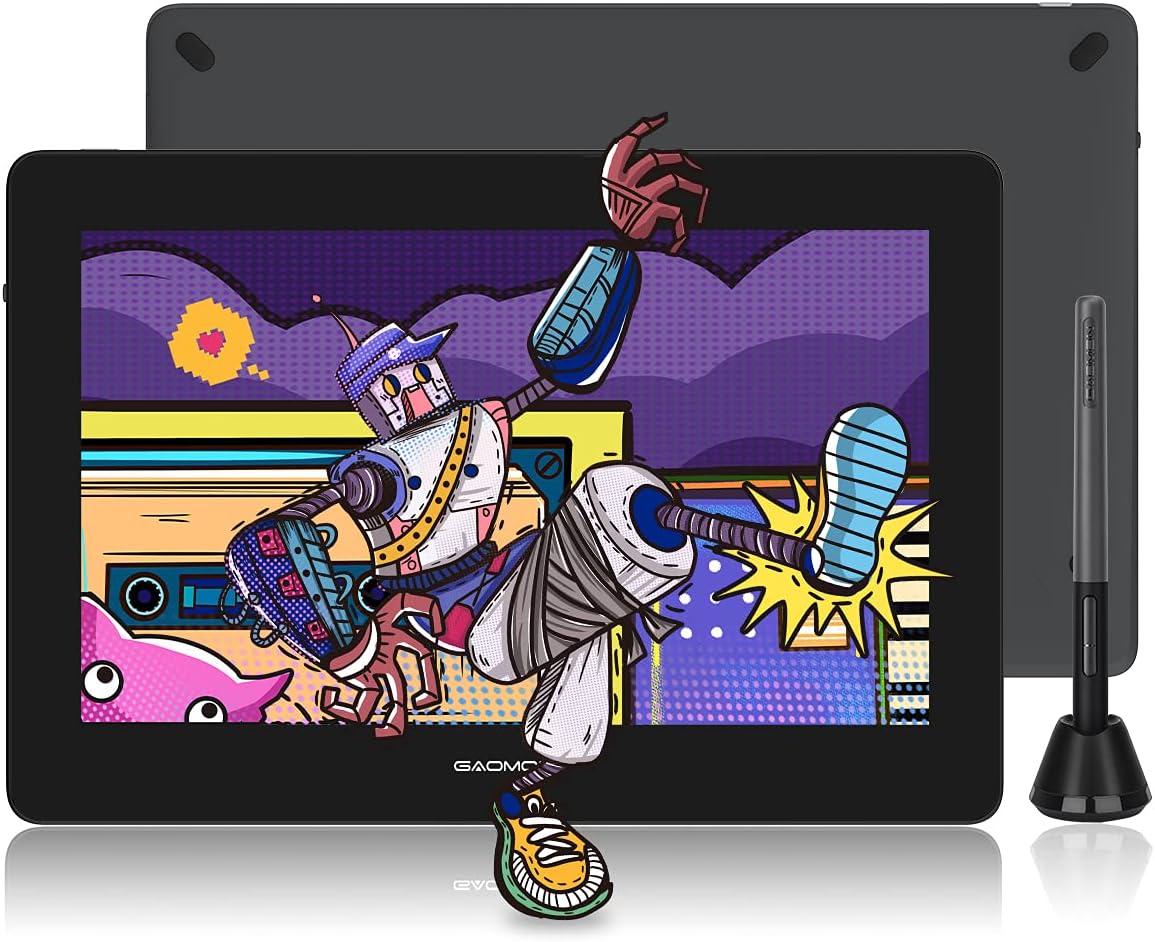
The GAOMON PD1320 is a 13.3-inch full-laminated pen display tablet featuring 8192 levels of pen pressure sensitivity and 60ยฐ tilt support. It boasts a vibrant 120% sRGB color gamut and a 1920x1080 IPS display with minimal parallax, ensuring accurate and vivid digital artwork. Lightweight and USB-powered, it supports Windows, Mac, and select Android devices, making it a versatile, professional-grade tool for artists, designers, and animators seeking high performance without the premium price tag.


| ASIN | B08M62NPBC |
| Active Surface Area | 13.3 Inch |
| Additional Features | 60ยฐ Tilt Support, Full Lamination |
| Best Sellers Rank | #40 in Computer Graphics Tablets |
| Brand | GAOMON |
| Built-In Media | AG Film Pre-applied, Digital Pen, Replacement Nib |
| Color | Gray |
| Compatible Devices | Desktop, Laptop, Tablet |
| Connectivity Technology | HDMI , USB |
| Customer Reviews | 4.3 out of 5 stars 6,798 Reviews |
| Display Type | IPS |
| Item Dimensions L x W | 13.5"L x 9.17"W |
| Item Type Name | Computer Digital Drawing Tablets |
| Item Weight | 1.9 Pounds |
| Manufacturer | GAOMON TECHNOLOGY CORPORATION |
| Mfr Part Number | A2.PD1320-0-UL0PSE-G-US-LC-1 |
| Model Name | GAOMON- PD1320 |
| Model Number | GAOMON PD1320 (Gray) |
| Native Resolution | 1920x1080 |
| Operating System | Android(USB3.0 DP1.2), Windows 7 or later, macOS 10.12 or later |
| Pressure Sensitivity | 8192 Levels |
| Screen Size | 13.29 Inches |
| Special Feature | 60ยฐ Tilt Support, Full Lamination |
| Specific Uses For Product | Designing, Drawing, Painting |
| Target Audience | Artists, Student, Teacher |
| Warranty Description | 1 year warranty under non human made damage |
A**.
Amazing Tablet for the price!!
I have had this tablet for about a year now and I can confidently say this is an amazing tablet! It a wonderful start out if youโre looking for a larger screen but donโt want to drop $1-2k on the higher name brands. Iโll give a couple pros and cons about the tablet and hopefully itโll help those who are deciding if they want to get one! Pros! *Large screen! - Iโve have used the 12.9 iPad Pro for almost 6-7 years, but always wanted something larger. This screen suits my needs so well! I donโt like to use shortcuts so Iโm able to adjust my program to accommodate my tools and windows. *Sensitivity - I was worried with it being a lower cost tablet that there would be some sensitivity issuesโฆnope!! Itโs perfect! The pressure can be adjusted to your desire as well, but I pretty much left it how it came out of the box! The is no lag, but I will say it depends on your computer. I noticed I got a bit of a lag on my iMAC, but thatโs because itโs old and I had to unselect screen recording to have it optimized better. But I had no issues when I used it in my Windows gaming Laptop. Just keep in mind on your processor. That my only concern on that part. *Price- Is there more to be said?! Itโs at an amazing price for someone wanting to start out on a larger screen but not sure if they want to go and drop over $1K on the name brand tablets. I will say I have use a Wacom Cintiq Pro 27 during a convention to try it out, and while obviously there are some differences in quality and performance, the Gaomon PD2200 performs insanely well for its price. *Accessories - tablet is build with its own stand and already installed so no assembly required or having to purchase a stand separately! You get the display pen along with additional tips and a holder for your pen! As Iโve mentioned I have had the tablet for nearly a year and have yet to change the tip yet. But I will say I donโt use it very often as life is busy, but I will put a guess if you use the tablet everyday you may just need to change the tip out every 3-4 months depending how much pressure you use. Now to the Cons: I donโt have many but the couple I would put out would obviously be involved on how itโs priced. You get an amazing and large sized tablet for the fraction of the name brands, but itโll come with its downsides. First would be the buttons- the buttons to turn the tablet on/off are not synced properly so I have to maneuver around to have to turn off the tablet when Iโm done. It gets annoying especially when it takes more than a minute to figure out the right spot to press. The short cuts being on the top right our a bit annoying. I wish they were at the bottom but like I mentioned earlier the screen is large enough that you an adjust your tools to your liking that suits your needs or you can just use keyboard shortcuts. This is also something to keep in mind if youโre a left hand drawer. Itโll be more difficult to select the shortcut keys. Display Match - Trying to display match was a nightmare. It took a lot of time and effort to get it remotely similar. I would suggest going to your computer graphics settings and set it that way. Trying to adjust it from the tablet itself is difficult and when the buttons not being syncs properly, it makes it even more frustrating when trying to adjust the display settings. I have used this both on Windows and Mac, and Windows took a little more time but iMac has preset settings to match with it, and it made it a little easier but itโs not perfect. So just something to keep in mind when drawing. Your colors will be off so always reference from a screen youโre used to and the tablet for best results! Thatโs all I really have. Itโs still an amazing tablet if youโre starting out on wanting a larger screen! I love this tablet despite its quirks and really happy with my purchase!!
K**E
Another Great Product from Gaomon ๐
Bought this to replace my trusty PD1560 - which still works like a champ, for what it's worth; I just felt it was time to treat myself to something a little bigger, and I couldn't be more pleased with the 2200. I was initially worried that it might be TOO big - but that's not the case at all. I would say it's actually the perfect size - big enough to have lots of room to work comfortably and to be easy on the eyes and wrists, but not so big that you're wasting space on the screen or taking up too much precious real estate on your desk. The stand has a nifty feature where it can sort of fold down and let the monitor sit directly on the desk, which I didn't really understand at first, but turns out it provides more options for positioning and lets you get it exactly where you want it. The screen is very nice. It's only 1080/full HD, which also worried me a bit as I'm so used to 4K on my other monitors, but actually the display looks pretty darn crisp and the resolution hasn't bothered me at all. (Don't get me wrong, when Gaomon comes out with a higher resolution pen display in the future, I'll be the first to buy it - but until then, this is absolutely fine and I have no complaints!) (...Oh, and for the other weirdos like me who prefer to draw on glass rather than a textured surface - this display comes with a matte textured screen protector pre-attached, but it can be easily removed to reveal the smooth glass underneath. There's nothing wrong with the screen protector, of course; it's actually a very high quality one and it's hard to tell that it's not part of the display itself at first glance...but it does blur the display somewhat, as all matte surfaces do. Removing the screen protector makes a HUGE difference in the crispness of the display, and I personally happen to prefer better clarity over a textured drawing surface. I've also been drawing on it daily for a week or two and have yet to notice a single scratch on it despite not having a screen protector.) The drawing experience is excellent - the pen is nice and sensitive, which is great for people like me who draw with a light hand. Parallax is virtually non-existent when you find the correct viewing angle. The pen feels nice to hold, with a silicone grip and two easy to use buttons; although it is extremely light, which makes it feel a little bit cheap (but probably helps with fatigue in the long run). LOVE the fact that it doesn't need to be charged. As for the hotkeys...well, they work exactly how they should. No problems there. But I don't use them. For one reason, because they're at the top of this (large) display and I have short arms, so constantly reaching up to find a button is a little tiring. The other reason is the buttons themselves. They're not illuminated, which they really, really REALLY should be since they're not raised or textured at all and are impossible to find without looking. (And man, you have to look hard, because they pretty much disappear completely into the glass even in bright lighting conditions.) Basically, the flush buttons make for a very clean and minimalistic appearance to the screen, but it severely diminishes their actual usability. The last thing I'll mention is the cord setup. I am SO HAPPY that this particular display comes with three long INDIVIDUAL cords instead of the stupid 3-in-one cord that so many of these drawing tablets feature anymore. Maybe this only applies to me, but my (rather large) laptop has the USB and HDMI ports on opposite sides, and the 3-in-one cord is never long enough to reach both. With these individual cords I have no problems and I can arrange my laptop and the pen display exactly how I want them in my workspace. I sincerely hope that in the future Gaomon and other manufacturers consider the fact that the 3-in-one solution does *not* work for everyone. To sum up, the PD2200 is another awesome offering from Gaomon, a great value for the money and I would absolutely recommend it 100%.
B**A
Good product, but the team is better
Before I start this review if you have any issues with a GAOMON product, go to their website and email them through the support dropdown, After-sales. Trust me, if it is a bad problem like mine, your problem will be resolved. Their Tech Support is really good. I had an issue with my original tablet where it wouldn't even turn on half the time. I pretty much had a 1/4 chance of the tablet working. It was a very unique defect because when I did research online about it, nothing was brought up. However, when I emailed them back and showed them a recording of my issue, they just sent me a new tablet. I mean I had to wait for it and show evidence about the problem, but it's better than me sending back the tablet, waiting for them to receive the tablet, once they receive the tablet, they can start troubleshooting and analyzing the problem, once they fix it, they send have to the tablet back, the tablet gets lost in amazon shipping, and it's a whole fiasco. I don't have to play ping pong for my stuff to work. Gaomon more like, "Hey, we see you have an issue, if there is a solution that we know off, we'll tell you what you need to do to resolve your issue, but if there isn't, we going to help you get a new one new one with no flaws." 11/10 customer service because what more would you want. Now on to the actual product itself (BTW: This was on a pretty decent modern computer if I do say so myself.) : Cons: 1. A lot of people have already said this, but I will say it too, make sure you have an HDMI port. I didn't have to suffer this issue because my computer has a pretty good graphics card. But, if you buy this for a laptop, make sure you have an HDMI port because you might end up buying an adapter if you don't. The reason why I say this is because I plan on using this for both my PC and my laptop, which both have an HDMI port. 2. This tablet does not have an integrated battery, but a power adapter. The power adapter is pretty bulky so you would need some space when plugging it in. I had to move some wires around, but it is around spring cleaning. I needed to clean up anyway, lol. This is an issue because if you are using an already filled-up power strip, as I am, you might have to reorientate and organize your plugs. 3. Calibration is a bit off. I needed to mount my tablet's monitor to my other monitor for the calibration to be correct, default settings. Though, I will say that the calibration for my laptop is okay. I will say it is still a bit off, but it is not as bad as my PC. Though I am assuming this is a problem with my PC/drivers and not the product itself. Calibration is on the software side, not the hardware side. So if you want to go in-depth and get the most accurate calibrations, either tinker around with the default drivers or test around and do some research on tablet drivers. I have a pretty good calibration set-up only using the default settings. Note: I am a left-handed hobbyist. I draw for fun, and I'm not good at it, lol. Because I needed to mount the tablet's monitor to my monitor, I have 2 monitors, using left-handed mode is pretty much impossible for this set-up. Because I would then flip my screen's orientation, my monitor's screen orientation, I would pretty much have my main monitor and my secondary monitor that is flipped upside down. Obviously, I don't want an upsidedown monitor. But, this is not an issue if I used the tablet's inbuilt screen. If I really wanted to, I could set it up so that I can do left-handed mode with the tablet's in-built screen, but I'm lazy. So, this only applies if you are left-handed, and you are too lazy to do the calibration on the in-built screen, like me. Or is left-handed and is serious about drawing. You draw in small, but you see your result on the bigger screen. But to be honest, the majority of things are made to be right-handed, heck even the glove that is included is right-hand orientated. Exception for the tablet, who really cares? Just flip the glove over, lol. Pros: 1. Screen is smooth. It ain't butter, but it's more like "I Can't Believe It's Not Butter!" You know it ain't buttery smooth, but it is close enough. Unless your eyes are trained in the mountains to see the minute differences between hertz on a computer monitor, you not gonna see the difference. I mean there is some stutter, but it ain't as bad as a computer with a low CPU, and RAM installed into it. So low to the point where you might as well just install Windows 1998 or Unix on it because anything higher would make it explode like Minecraft on RTX. The screen is large and the stutters aren't even common, there like once in a blue moon. I mean you might see it once in a while, but that's with all tablets and monitors. 2. It is pretty portable. Now, we are not talking about the tablet being so portable to the point where you are able to put it in a purse and call it a day, except I did see some pretty big purses that I would want to buy on Amazon, but it is portable. If you have a pretty decent backpack or anything that has a good dimension and volume, you'll be okay. The wires are pretty long, but there is a velcro strap that you can tie it up with. There is also a thing about the power adapter. The power adapter is broken into two parts, so you are able to assemble and disassemble them anywhere you would like, obviously when it is plugged out and NOT plugged in. Please do NOT attempt to disassemble it when it is plugged in. You're buying this tablet for the screen, size, buttons, and useability, so please keep that in mind. 3. It doesn't have an integrated battery. Now, the reason why I say that this is a pro is that this also includes the pen. Why do I need to charge the pen to use the tablet? This is the reason why it is a huge plus. It also means that I don't need to pay for a replacement battery if I overuse the tablet either. It is the same logic as a laptop. Sure, your laptop is portable, but there is a chance of the battery going bad if you constantly charge it to full. If you consistently charge your batteries to full, you might actually kill your batteries in the long run. This applies to anything that uses a battery. Once your battery dies, either you just don't use that device anymore, or you buy a new battery replacement. This is the reason why I put this in a pro, I don't need to buy a replacement for a battery. If it breaks, it breaks. And I don't think it's going to meltdown anytime soon. 4. The pen and the button are pretty responsive. I mean you need the pen to get close to the tablet for the buttons on the pen to work, but it's okay. You are able to see custom hotkeys, it's all good.
I**A
Very nice drawing tablet
Got this for my daughter, She love it so easy to use, love how easy it is to draw with, the screen is bigger than I thought it would be and so bright. Work with her gaming PC compatible w/ windows 11. I love the price great value
J**M
Great for everyone and no limit if you take the time to learn AHK or a proper language like C#
Disclaimer: I bought this tablet as Used Good for $99. I expected the tablet to have issues, but was really surprised that the thing is practically new. I looked it over hard and there wasn't even tiny scratches, TBF it's like the last owner opened it, took it out of the packages, threw away the manual, put it back in the box and sold it. I do suggest buying a extension cable 12FT, HDMI extension cable 12FT, and USB 2.0+ extension cable 12FT if you're like me, in a bed that can be a chair/recliner/reclined bed with a 60" screen at my feet, a 43" screen left of my head, a high end chromebook and the tablet both to my right with cables running under my bed and hooked up on a extra wide vented stand. The pen lag is too small to notice, the only thing smoother is my high end gaming mouse with a very high polling rate, but I'm able to play OSU on it at the highest levels. I used a no screen Wacom for OSU in the past and quickly rose through the ranks to the top 200. After 20+ hours of OSU on this tablet, my rank went from 200s to 90s. The screen quality is great, but I suggest turning it off when not in use unless it's on a vented stand since it puts out some heat, about 50% to 60% of heat as my high end Chromebook generates. On a vented stand there is no problem leaving it on accidentally which I did, but it was cool when I woke up. Instead of duplicating a screen, I set it as a fourth monitor, and use Autohotkey to automatically move all my GFX software to the tablet meaning I don't have to calibrate it at all, it's 100% accurate. I suggest setting the hotkeys to ALT + F13-F20 (I use F13-24 on a razer keypad with a joystick and ctrl is for my steam controller) and AutoHotkey to make the keys multi-function. To learn AutoHotkey I suggest using Pulovers macro creator which generates code. That will teach you the basics of AutoHotkey coding which makes products infinity better since you're only held back by your imagination and skill level. For example: I have each key set-up to detect up to eight presses within X time + a hold to timeout/cancel and four levels of time delay for a total of 12 functions per key for a total of 96 functions per program with a sleek OSD and a dark GUI to edit functions/add new software and toggle/remember software positions and stuff like removed title bars and borders for more room. It pretty much makes my and Huion pad useless, even the knob since I set the bottom hotkey to function as a knob by locking the mouse in a circle that changes when the pen is tilted at x angle, though it required using C functions inside AHK to set 360 points. As for my Wacom, I set it up as a awesome gesture pad using StrokesPlusNets C# to write macros/functions. There's no need to stop using older hardware when it can be repurposed to do so much with a little code. Also, don't be afraid of C# in StrokesPlusNet, it has plenty of built in functions, most things can be done without knowing any code. Sames goes for AutoHotkey when using pulovers macro creator. The scripts can be saved as programs right from the software. Hope this review helps with your new tablet and ways to repurpose old hardware with or without knowing how to code/script. Last, last, lastly, thanks for buying me the tablet Jim. :) Merry Christmas -A
A**A
It passes as a display tablet
For the most part, its okay. And as my first pen display tablet it was really exciting to wait on and be received, but it has some really major flaws that prove you get what you pay for. Pros-- I like how small the screen is, personal taste It wasn't that complicated to set up customer service was extremely kind and helpful it does function, it does have pen pressure, it does work as a second monitor the screens matte texture is fun to draw on it's lightweight and extremely portable if you have a laptop the cords aren't complicated whatsoever Cons-- the pen for the tablet SCRATCHES the screen. After a few drawing sessions i noticed really obvious scratches on the screen. I was not hard on this tablet, I read a few reviews that said the pen can scratch the screen and I babied the tablet, a LOT. So it is in fact the tablets very pen that damages the screen. I have to fix the calibration of the pen to mouse almost every single day upon starting my computer the screen is not as crystal clear and hd as you probably think. the screen is actually quite blurry and doesnt look hd at all. things are still see-able and readable, but its probably going to be a big change in what your normal computer screen looks like and then this tablet. I did get used to it, but it would be nice if it had a better resolution. You WILL have to mess with the settings (that were a little complicated) to fix the colors. The pen stand is so plastic and light that any little movement can knock it and the pen over. My overall view is: if youre a beginner searching for a pen display tablet this works, but you might also want to save your 200$ and just continue to save for a better brand and quality.
G**I
GAOMON Tablet | Great starter tablet!
Iโm honestly impressed with this Gaomon screen tablet! For the price, it delivers way more than expected. Itโs a screen tablet, so you can see exactly what you're drawing, which makes the whole experience much more intuitiveโespecially if you're transitioning from a non-screen tablet. Keep in mind, itโs not Bluetooth, so youโll need to use the included cables to connect it to your computer. But once everything is plugged in and set up, it runs beautifully. IMPORTANT: Make sure to install the correct drivers from Gaomonโs website that match your model. This step is crucialโonce the drivers are installed, the tablet works like a dream. I've used it with both Krita and Clip Studio Paint, and the responsiveness and pressure sensitivity are fantastic. Overall, this is an amazing value for artists on a budget or anyone wanting a solid, reliable drawing experience without spending a fortune.
G**B
Love it!
I wimped out on standard screen-less tablets and went for this one. While I was kinda getting the hang of the whole my-tablet-doesn't-have-a-screen-so-I-must-look-at-the-computer thing, it was just too much for me, especially with my bad coordination. I also have wrist problems, so making the same mistake over and over because I can't see my drawing right below the pen is, uh, not good. This tablet has been amazing. My old Huion tablet always had a problem syncing with my driver for Paint SAI? This one has no problems at all. The screen looks great to me. There's very little lag (there is of course more lag if I overwork the computer, which is probably more of a computer problem than a tablet problem). The pen sensitivity and tilt control have been great; I find them much better than they were on the Huion tablet. It is also soooooo liberating to not have to charge the pen. That feature alone is already a life saver. Every now and again, I forget, and I have this moment of panic followed by relief as I remember charging the pen is a thing of the past that I never have to worry about again. This tablet does require a computer to pair with. It basically functions similar to a tv that has been connected to a laptop; it can only mirror and interact with content that is being powered by a computer/laptop. The HDMI cord is the main part that powers the screen, so without anything to plug the HDMI into, it will not work. My boyfriend was a little upset about this, but even if it requires a computer, it still has better quality and ability for adding details than for example just using an iPad. The seller is also very nice. They reached out to me once the product arrived to ensure there were no damages or other issues, and I believe they also reached out before the product arrived with updates on the shipping process. They warned me against common problems other customers have experienced with the device, and while I did not experience any problems myself, it was still nice to have an understanding of what could possibly happen ahead of time. As I mentioned before, this works great with Paint SAI. I've also used it with regular Microsoft paint and Krita. Honestly, I've even checked my email on this thing without issue. The driver installed without a hitch. The screen was in good condition with no scratches. The pen has a decent quality to it and is not heavy in any way. The hotkeys all function as intended. Overall, it is hard to think of any problems with it since I don't think I've had any. Even the cords come with a cord-keeper, so I've had no problems there, either! If there's any issue I could think of, it's really just that I keep accidentally pushing the buttons on the pen while drawing, and they even have a quick fix for that by just disabling those buttons. In summary, I really like it. The device functions great. This seems to be a pretty nice company, and they do lots of sales. There is of course a large price for this, but it's honestly super affordable compared to other tablets with screens, and even in comparison to some big named tablets that don't have screens. I don't use it nearly as much as I should, but the quality has held up throughout my duration of having it. 10/10, couldn't be more pleased.
M**E
รtimo
รtimo, foi resoluto.
E**A
Awesome Awesome
Lovely Tab. A must for the teachers.
R**S
its a very usefull device for a beginner.
A**N
Nice display
Best product
K**.
Soooo happy with the 22" pen display. Perfect extra monitor. Fantastic pen precision. No glare.
I'm the fussiest buyer of electronics, but this tablet really made my decade. It's simply amazing. I have a small Xpen pad also (not a display) and it's good, but now it feels like a blunt children's tool in comparison. ;) My new Gaemon 22" feels like a professional precision tool that enjoyed a lot of careful design and quality commitment. The matt surface is an absolute pleasure to work with, even in my supper sunny apartment. As an added bonus it serves as an additional monitor, so i keep it righ in front of my keyboard at an angle, below my main monitor. In fact, it's a perfect primary monitor too (Normal monitors are so yesterday for me now! Haha). It doesn't work with finger touch, so you always have to use a pen but I got used to it easily. It's worked perfectly the first time I pluigged it in on my Windows laptop, and later on my linix PC too. I installed the driver as an afterthought just to get the software for editing the settings and configuring the buttons. I use Krita and IncScape for art and it works beautifully with both. Still can't get over the precision! It's such a yummy feeling to have perfect control over the pen. It can draw the tiniest thin littel lines and the line starts exactly where you touched the pen, not a milimeter below shiny glass like most tablets. It almost feels like I'm drawing with a sharp pencil directly on paper. Love it! Suggestions to GAEMON for future versions: 1. The touch buttons are stubborn and sometimes just don't respond. Plus they are way far away. So I hardly use them. 2. One USB-C cable can replace the HDMI+USB-A combo to make the tablet a bit more plug and play (like a docking station setup, or like most laptops now only require one USB-C cable to connect to power and monitor + keyboard + mouse). 3. A clip or magnetic slot on the right hand side for holding the pen might be handy
Trustpilot
1 month ago
3 days ago