Desertcart purchases this item on your behalf and handles shipping, customs, and support to Slovakia.
⚡ Power up your WiFi game—fast, secure, and energy-smart!
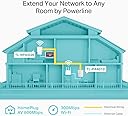
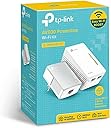
The TP-Link Powerline WiFi Extender TL-WPA4220 KIT leverages your home's electrical wiring to deliver up to 600Mbps wired and 300Mbps wireless speeds, ensuring reliable internet in every room. Featuring easy plug-and-play setup with push-button security and smart power-saving technology that reduces energy use by up to 85%, it’s compatible with all HomePlug AV & AV2 adapters for seamless network expansion. Ideal for streaming HD video, gaming, and connecting smart devices without the hassle of new wiring.


| ASIN | B00HSQAIQU |
| Best Sellers Rank | #233 in Powerline Network Adapters |
| Brand | TP-Link |
| Built-In Media | Network cable, powerline adapter, QIG |
| Color | White |
| Compatible Devices | Compatible with all HomePlug AV & AV2 standard powerline adapters |
| Customer Reviews | 4.1 out of 5 stars 8,138 Reviews |
| Data Link Protocol | Ethernet |
| Data Transfer Rate | 300 megabits_per_second |
| Hardware Interface | Ethernet |
| Item Dimensions L x W x H | 7.21"L x 5.36"W x 3.35"H |
| Item Weight | 204 g |
| Manufacturer | TP-LINK USA |
| Mfr Part Number | TL-WPA4220KIT |
| Model Number | TL-WPA4220 KIT |
| Number of Items | 1 |
| Number of Packs | 2 |
| Product Dimensions | 7.21"L x 5.36"W x 3.35"H |
| UPC | 172304354124 132018352489 803982830449 845973032579 |
| Unit Count | 1 Count |
| Warranty Description | 2-year |
S**H
Little different set up
My 2 piece kit came in a hurry and installed without incident just as fast. I am detailing the set up I have because I can’t be the only person with odd internet issues. My IP is a local (rural) telecommunications cooperative that provides phone, TV programming, dvr, and internet--dsl. For the most part they are great but one oddity is that it does not seem to play well with wireless routers. For some reason neither I nor technicians who were nice enough to come by and take a look have been able to install any new upgraded router on this internet, and not for want of trying. Of course I am sure if I subscribed to “managed Wi-Fi” at $10/month they would find a way to install their router—but how much management should one person’s internet really need? Since it is the only reliable internet available in the area, I have to work with it. Aside from that, due to a playful rescue kitten and electrical gremlins I am currently without both an Ethernet cable running under the floor and a wireless router until an old-school router that will install arrives and I am able to repair the cable. I found repairing the cable much like herding the kitten, so that hasn’t happened yet. That leaves me with one Ethernet cable on this side of the house currently serving a set box/dvr, said cable refusing to have its signal split by any means I have found and one old router that is dead. Therefore no Wi-Fi and miles of cat 5e cable running from one side of the house to the other in order to get internet to a laptop. But where to install the new router when it arrives with no Ethernet cable where I need it? Enter the TP-Link AV 600 kit. I had no reason to think this thing was going to work in a 100 plus year old house miles from anywhere on a system that doesn’t welcome newcomers and no router, but hey, let’s give it a try, right? So my set up is this: one Ethernet cable running from the modem (really Ethernet switch I think) across the house through the wall and into the TP-link adapter; extender plugged in to a different electrical outlet in the same room; ethernet cable from extender to set box/dvr. No working router anywhere in the set up. Holy Cow! Within three minutes of unboxing, I had working television and screaming Wi-Fi without so much as a wireless router anywhere on the place! It is a miracle! My laptop, smart phone and tablet immediately signed on to the new TP-Link Wi-Fi and grandma is once again online! You will find your device user name and password printed on the extender in very tiny print. Order a magnifying glass when you order your TP-Link—you are going to need it. Wi-Fi speed may be slightly less than it was with a wireless router but it is entirely usable and it is, after all, running through my house wiring sans miles of cable! When the new/old router arrives I will attempt to install it in the remaining Ethernet outlet on the extender, downstream from the TV set box. I will use its signal to reconnect to a smart TV, Roku, wireless printer, security cams, etc. I do not intend to clone anything. If the router signal is degraded I will simply sign all those devices to the TP-Link Wi-Fi and call it good. In that case, I will check to see the router isn’t DOA and put it away for emergency situations should the TP-Link fail. Being in the middle of nowhere with no Wi-Fi is not to be recommended. I did download the TP-Link utility and turn off power save mode in hopes that will preclude any signal dropping that other reviewers have complained about. When you sign on to the utility you will probably use admin/admin for user id and password, so don’t over-think the thing. I noticed that there is even usable Wi-Fi upstairs in this old barn of a house and there has been no interruption of signal for the TV set box or Wi-Fi since installation a day ago. Neither unit is running hot at this point. So far it has been pretty impressive. I will give the TP-Link a little time to fail and then I may order more extenders for better coverage across a two story house with pretty good square footage. For now installation was so easy as to be ridiculous and performance is really good. I am delighted. If there are further developments I will update this review, but my impression is that this is an item to try under any circumstances, and a really cost-effective way to circumvent logistical limitations. Feb 2020: Thought I had an ethernet problem but further troubleshooting found something else. Still all good.
L**!
Great product! Helpful instructions for those who are struggling...
As a professional computer technician, I needed this to satisfy an issue for one of my customers whose wireless signal was just too weak to reach the other end of their home and outside to a workshop. This solved the problem with very little effort. I read many reviews and troubleshooting tips beforehand which helped but here's how I did it and it was fairly simple. First thing, I changed the Linksys wireless router's default IP from 192.168.1.1 to 192.168.2.1 and change the DHCP scope to start at 192.168.2.10. I did this because the TP-Link device uses the same default IP of 192.168.1.1 that most routers use so you should change your router first to avoid conflicts. Second, I plugged the small unit into the wall, attached a network cable to it and plugged it into the router. Then I pressed the "Pair" button on it and gave it a few seconds. Then I plugged the larger unit into another outlet in the same room and connected a laptop to it with a network cable. I did this to verify that network connectivity was working. Make sure you turn off wifi on your computer so you're actually using the hardwired ethernet connection. I ran speedtest.net and got the exact same speed as the desktop connected directly to the router. Then I moved the TP-Link device to the building outside that my customer uses his laptop and tablets in. Keep in mind the smaller TP-Link device remains next to the router and plugged in at all times as it is receiving the signal there and transmitting it to the larger TP-Link device. Now that I had the device outside in the workshop, I plugged it in and connected my laptop and the speed had dropped to around 5Mbps. It was about 58Mbps inside so there was a huge loss in speed once I got outside but who knows what the wiring situation was like and it was on a separate circuit in the breaker box and all so I expected that somewhat. Anyway, the device proved we still had connectivity, slower, but it worked so I knew we were in business. Now came the tricky part... I needed to get this thing to clone the router's wifi. This I struggled with. I pressed the WPS button on the router, then the Pairing button the the TP-Link and it never seemed to work. At first I thought it was working but it's easy to get confused because you're still connected to the actual router's wifi. After multiple attempts at cloning the wifi via WPS/Pairing, I went into the router's settings and disabled wifi so I would have an accurate picture and it turned out that the TP-Link had not cloned anything. It created it's own separate wifi network but I needed it to actually clone the existing wifi network which it was not doing. Everyone else reviewing this complained about how hard it was to use the software based tool to setup this thing but I didn't have any problems with it. Per the included instructions, I browsed to[...]#Utility and downloaded the Powerline Scan Utility. Installed it and logged in as admin/admin and presto, I was in. Once in the settings, I went into wireless settings and changed the default SSID to my existing wireless router's SSID and used the same WPA2-PSK password and now it was cloned! As a test, I kept the wifi disabled on the router and only connected to the TP-Link wifi and it worked. I ended up moving the TP-Link device into my customer's garage which worked out well because it was now on the same wiring as the house and the speed remained very high around 40Mbps and as a bonus, the wifi signal it generated was now closer to the workshop outside and it was getting a great signal and still getting speeds around 30Mbps. Then I enabled wifi on the router again and at first, the laptop was showing a weak signal as it was still connected to the TP-Link device way on the other side of the house in the garage but after a few seconds, the laptop realized it was now closer to the main wireless router and it automatically connected to it. So if you're using this for a hardwire connection only, it couldn't be any simpler. Just plug in the small unit first and press Pair on it once it's connected via ethernet to your router, then plug in the larger one wherever you need it and you're connected on both ends. If you need it to clone your wifi use the Powerline scan utility and it's a breeze. Hope this helps!
K**Y
Find the right socket and you'll get great wifi reception
This powerline AV600 kit is only ok. It is very easy to set up. I used a three socket extension cord to link them. Plug one end of the provided ethernet cord into your modem and the other end into the adapter (the small of the two boxes). Plug the adapter into a socket and the extender (the other box) into another socket that is close to the plugged in adapter. The LEDs on both boxes will be on steadily except for the ethernet LED on the extender box. To start the linking, press the button for one second on the adapter and the LED on the adapter will start to blink. Within two minutes, press the button on the bottom of the extender for one second and the top two LEDs will start to blink. (For both boxes, do not press the buttons for more than 5 seconds or you will be resetting the devices). When the LEDs on both boxes are on stead again then they are linked. If you linked them with an extension cord, replug the adapter directly into a wall socket with the ethernet cable still attached. The ethernet cable must be constantly attached between the adapter and modem in order for it to work. Now plug the extender into another wall socket within the same room. The LEDs should be lit. If the LED with the house picture is blinking, that is ok, it just means that data is traveling through ethernet cable. The ssid and password is on the label of the extender. If linked properly you should be able to connect using your phone's wifi. If not, relink or plug the extender into a different socket. Now test the speed of the wifi connection while the extender is still close to the adapter. The speed should be very close to the speed of your router. My speed was about the same which is 60 mbps. Now here comes the bad. I plugged the extender throughout my house and I never got any speed close to 60 except if the adapter and extender were on the same circuit breaker. If it was on different circuits, it would still work but the speed ranged from 7 to 25 but not close to 60. The funny thing was that some sockets that were further away from the adapter had faster speed than closer ones. It did improve my speed in places where I normally got 4-7 from my original router to 18-24.with the extender. When I test the speed next to the extender, I get 55-65. I got this powerline because I couldnt get any reception outside my attached garage but now I get around 23 mbps with the powerline. Now I can install a wifi motion detector camera in front of my garage. Also, to change the ssid, log in to tplinkplc.net. The name and password are both admin. For security, you should change the login name and password after you log in. Once you change the ssid and ssid password, you will NOT be able to log in again through tplinkPLC.net. Go and download the tplink utility app. From there you can log in and see if your ssid change worked or any other things you want to do. When logged in, you'll notices the address of 192.168.xxxxxx. Remember it, write it down, save it. With that address you can get to the login page also. So the good is ....it is quick and easy to set up, does work on different circuit breaker lines as long as it is on the same main panel and has an app to configure extender. The bad.... you do not get the same or close to the speed as your router unless they are on the same circuit breaker line. Again, it did help me get wifi outside my garage where I couldn't so it worked for my purpose. YMMV. Update 5/1/2020.....I got a longer ethernet cable which enabled me to plug the adapter into a different socket. Now, my garage and the rooms above my garage which is on the opposite side of my house where my router is at gets the same speed as my router of 60. This powerline is working great now. Changed rating to 5 stars. Update 6/27/2020.....About every 4 to 5 weeks, the speed slows down to 3-5. So when this happens I just unplug the extender and replug it back in. It seems to recycle and its back to 60 again. Because of this, it lost a star to 4 stars now but its still a great extender.
D**E
Works as well as the product says it will, imagine that!
Purchased this startup kit plus an additional extender. For some reason, it was $10 cheaper buying them separately then buying in one complete kit. Guess they are different vendors, but anyway, I digress. So onto my review. Let me start my saying that I am NOT an IT person in any way, and I've very limited experience with WiFi, networking, and etc. SHORT VERSION: I needed something to boost the WiFI signal in the master bedroom as well as the basement in my house. These powerline adapters had the best reviews plus they included the WiFi extender. After about 30-minutes, I had everything set up using one common network name so I'm not even aware when, or if, the computer switches to the adapter wifi broadcast. The WiFI connections in my house seem to be more stable, and I was able to plug in the smart TV's and/or blue ray player right into the ethernet ports freeing up WiFi bandwidth for other devices if needed (I think - you see, I barely understand this stuff). Very happy, easy to use, and no issues whatsoever. Money well spent. I may pick up another extender for the other area of my house if needed. LONGER VERSION: I found the 1-page diagram showing how to link up the system confusing - it was too simple if that makes any sense. After staring at it for 10 minutes, I gave up and just plugged in the base adapter to the wall and router then ran upstairs to plug in the extender. The extender found the adapter right away without me doing anything and I was able to discover the 'new' network on my laptop. Same issue with the 2nd extender - it connected to the adapter right away on its own, no pairing needed. I did not want to have more than 1 network name, so tried using the WPS button on the router and adapter so the network settings would be copied over (I think that's how it is supposed to work). When this didn't work, a quick google search told me that the Verizon FIOS people in their infinite wisdom had decided not to active WPS options on their actiontec routers. So I had to manually set the SSID and password for both extenders to match my original wireless network. Contrary to what others might have reported, this was very easy! I went to TP link website, downloaded and installed software (Win 8) for the product. From there, the utility finds the extenders and you can set the wireless information as needed for each one. All in all, very easy - about 30 minutes total time to set this up and I am a novice. One surprise was the ethernet speed appeared to be a bit slow on one smart TV (the TV had a utility to test this), less than 5 Mbps (and wireless was about 13), so not sure if it's my powerlines or something else, but I was still able to stream netflix at HD with no issues. My service is 25 / 25 Mbps...
S**T
This Product Not Recommend for Wi-Fi Extension
I bought three of these devices several months ago to extend my wireless router signal in a large apartment with concrete and steel construction. A Wi-Fi signal in this environment only travels about 20 feet then is seriously attenuated by the walls and floors. Many of my neighbors have the same problem and we were seeking a solution for all. These devices must be used with a TP-Link PA4010 power line module to extend an Ethernet signal to the device for rebroadcast as wireless. Although, the claimed speed of 300Mbs is never achieved, I do achieve speeds of better than 100Mbs to the remote WPA4220 devices. I use one WPA4220 device connected using the included Ethernet port to an 8-port Ethernet switch that provides broadband connections to my entertainment system (Fire-TV, Blu-Ray player, etc.) and this works fine. The Ethernet speed over the power line module is good enough for HD movie streaming. The wireless signal is also acceptable so long as no wireless device needs to be connected to another wired or wireless device. My wireless LAN operates in a “unified” mode with a common SSID and WPA key and I can see my wireless devices connecting to the nearest WPA4220 device as I walk around my apartment. But the WPA4220 devices go into an un-commanded wireless isolation mode every 12-36 hours and intra-LAN wireless connections are blocked. Smartphone, tablet and laptop connections to the internet continue to work correctly; and rebooting each WPA4220 device returns it to non-isolation operation for another 12-36 hours. I cannot determine why this happens and why the span is 12-36 hours, but hundreds of tests over several months confirm the anomaly. I contacted TP-Link support via email with detailed explanations of my issue and after the usual “is your router turned on” and “do you know your password” dummy questions I was able to convince them that there is an issue. I sent screen captures of the WPA4220 setup and statistics pages and screen captures of my attempts to ping devices on my LAN when the WPA4220 devices were working normally and when they were in wireless isolation mode; but alas the TP-Link corporate email systems repeatedly blocked my screen captures and we were never to able to move on to other than my text explanations. My apartment building has over 100 units and there are many wireless LANs and wireless devices in use here. My suspicion is that when an intruder attempts to connect to one of my WPA4220 devices, this puts the devices into wireless isolation mode un-commanded by an operator. Although the devices support wireless isolation as a setup option, mine are not so configured nor is my router. I recommend using these devices only if you are proficient with wireless LAN technology; the intricacies of setting up multiple devices in a unified LAN; and you DO NO need intra-LAN wireless operation to function. Update December 2015: I've tried to resolve the unwanted shift to wireless isolation mode with TP-Link tech support for several months and although they were responsive, they claimed to be unable to duplicate much less solve my problem. Yet the problem persists even with firmware updates. When I reboot the TP-Link WPA4220, all is well, Chromecast works from my iPad and iPhone and I can connect and control my Apple TV via wireless. I can also connect to the WPA4220 from an iPad and see the wireless packet counts incrementally increasing on the wireless statistics page inside the WPA web interface. But after a few hours all wireless device-to-device connections are blocked and the packet counts return to zero. Chromecaast no longer connects and I cannot connect to my Apple TV with an iPhone or iPad . I can no longer connect to the WPA4220 from an iPad. Wireless devices can still connect to the internet but not to each other. This is classic wireless isolation, but in my case it is unwanted. I remain convinced this is a TP-Link problem and do not recommend the product for wi-fi extension if you need wireless device-to-device connections.
W**K
Buggy Wi-Fi and Ethernet: Speed slowdown, Apple TV/Airprint problems, etc
(01/30/17: Update) I had two of these units and returned one for warranty service, which was pretty bad/unresponsive, at first. After getting nowhere for a month, I gave up, but they eventually came back and said they would ship me a replacement and pay my return shipping. Everything went smoothly after that. Even better, the replacement, which looked just like the old one but had a newer manufacturing date, worked much better with all the bugs below almost completely fixed. Even the wifi range seems better, so I'm happier with it. My other unit also had problems, but instead of getting warranty service, I found out they have a special refund program for it: the "TP-LINK AV500 PowerLine Satisfaction Guarantee program" which will pay for return shipping as well. Using the refund, I upgraded to their TL-WPA4530 KIT, which has worked flawlessly so far. So I am upgrading this from 1 star to 3 stars (previously downgraded from 2 to 1 due to warranty service problems). (09/19/16: Original review) I've had this wifi kit (TL-WPA4220KIT) over a year now (since June 2015), but it's felt like more than that in debug time. I've installed all the firmware updates as they've been released but to mostly no avail. It was easy enough to install, though if you get an "unidentified network, no internet access" error in Windows when connecting to the ethernet port, try uninstalling your NIC driver and reinstalling it (worked for me). Wifi: Range is a bit disappointing. Good coverage within a bedroom-sized room, but less so to adjacent rooms. Note: A common theme among all the bugs below is that while you haven't changed anything settings-wise, after a few hours things stop working as they should for no apparent reason, until you reboot it. If you put it on a electrical timer to reset its power twice a day, your problems might be solved. Apple AirPrint: Printer not detected after a few hours, until you reboot the powerline. To reboot, unplug it for a few seconds. Apple TV: Sometimes your Apple TV isn't detected after a while (again, until you reboot). It seems that TP-Link's firmware has some problems with Apple's networking protocol. Performance slow down: Measuring with a speedtest app, I noticed download and (especially) upload speeds would go way down at some point during the day until I reboot it (which would help for a few more hours). We're talking 50% or more on downloads and uploads getting capped at 5 Mbps (down from 50 Mbps for me).
C**S
Helped solve my frequent Nest outdoor camera disconnects!
I've only had this for a day, but it certainly seems like the problem I was having with one of my Nest outdoor cameras has been solved. I certainly hope so. Every day since my driveway camera was installed, I would get at least 3 or 4 "Camera Offline" alerts from Nest apparently because the camera didn't have a strong enough WiFi signal compared to other Nest outdoor cameras I have. It is mounted just above the garage door, in an area that is solid concrete block and stucco. My first thought was there's no way my router's not good enough and I have 75Mbps fiber service getting around 80 Mbps download and 90 Mbps upload speeds. I have a Netgear Nighthawk X10 and everything else in my house runs great. Using the router's management app to look at the camera's signal strength, and then using my phone to look at the signal in that location, it appeared to only have around 20%, while the location of another Nest outdoor camera I have, which is only about 15 feet away but closer to my front door, has a 70% signal and never disconnects. After looking around on the Nest Support site for answers, I saw a recommendation to try using a powerline adapter with an access point closer to the camera. Of all the options I looked at, this was the least expensive and easiest to setup so I figured I'd give it a try. Very glad I did! If you're new to powerline adapters like I was, it's essentially like running an Ethernet cable from your router to another location in the house so you have "direct connect" speed at the new location but don't have to get up in the attic or spend loads of money on all the cabling. It just uses your house's electrical wiring to transmit the data. Setup couldn't have been easier. I plugged in the adapter to an outlet close to my router and plugged in the included Ethernet cable between the adapter and router, then plugged in the extender in another outlet in the same room. I then pressed the pair button on the adapter, followed by the pair button on the extender (you have 2 minutes to complete the process). They had no trouble synching up and then I was ready to go. I took note of the SSID and password stamped on the label of the extender, took it out to the garage and plugged it into an outlet only about 12 feet from where the camera is located, and then used the Nest app to connect the camera to the new WiFi SSID. Now when I look at my router's management app to see what kind of signal strength the camera is getting, it actually shows up in the app as if it's connected via Ethernet cable! Not sure why that is (maybe because it's plugged into the same circuit that the powerline adapter is on?) but either way it seems to be rock solid now! Only time will tell I guess but it certainly seems like this is going to be my answer and didn't break the bank. I will certainly look at adding more of these if I ever need to run direct Ethernet to another location (without actually running the cable), or if signal strength in a dead spot seems to be a problem. Very happy!
A**T
Fixed my Internet woes, thorough review. Hope this helps you
I have been looking for a solution to bring reliable internet to my upstairs man cave. My office and main internet inlet is on the main floor on the opposite side of the house. I had upgraded to a premium N+ router in hopes to get better signal in that room. It has left a spotty signal in the room. At main desktop I receive a speedtest of 15 Mbps DL and my room had received about 3 Mbps DL after drop off. This has been far from ideal for gaming (specifically Xbox one) or any type of streaming. I read many reviews and watched videos before deciding to purchase the powerline adapter. I am glad I did. Hardware setup was somewhat easy. Cable comes in to modem, modem to router, router to powerline adapter, powerline adapter to wall socket. The Other powerline adapter goes into socket of new internet accessible room and from there a ethernet cable can direct wire 2 different hardware or simply use WIFI from new adapter. Only real problem I had with setup was this: During setup it tells you to hit WPS button on your router to WIFI clone. Then you press the button on the powerline receiver to gather the SSID and PW from your router. This should make it so you can connect with any wireless device to the new powerline receiver. Well my router is unlocked with no PW. (I live where nobody can get my signal anyway) So I had to use the included software CD to turn security off on the new adapter and viola. Works. Testing: My hardline desktop from cable company -15 Mbps Download 1.5 Upload Wifi in same room as router: -13 Mbps DL 1.1 UL Wifi in game room without powerline adapter 3 Mbps DL .8 UL (sad and barely usable) *ADDED powerline Wifi in game room with powerline adapter 10.16 Mbps 1.09 UL Direct wire in game room from powerline adapter 10.9 Mbps 1.10 UL Wow...less than 5 Mbps drop off on download speed and less than .5 on upload some may be unsatisfied with this drop off , but this is by far the best solution I have found, other than running a 100ft cable across the house. If you have internet woes, specifically wifi reach issues, this is the adapter for you. I have created repeaters, linked multiple routers, and this by far has been the best solution. (those other solutions cause latency issues) *Just a note that many others mention, make sure the powerline adapters are on the same power circuit. Meaning if you have more than one breaker box, make sure they are in outlets from the same box or this product will not work. Also powerline adapter must be plugged directly into wall and not into a surge protector strip. I hope this solution works for you as well as it did for me.
P**A
Works well, easy setup
Easy setup, works well. 2 x white ethernet cables included (1 for connection to household modem router and one to connect remote unit to PC or smart TV in remote room). Wifi on the unit in the remote room gives us 30mbit/s. Good product, easy to use.
E**6
Consigliato
Visto l'ottimo risultato che mi hanno garantito in casa mia, ho riacquistato questi estensori wifi per i miei suoceri. Ottimo prodotto.Consigliato
S**V
Five Stars
works well in a big house
O**R
Ev içinde internet dağılımı için en ideal çözüm
Evde yada ofiste diğer odalarda wifi sinyal sorununuz varsa temiz kesintisiz çalılan kurulumu basit harika bir ürün. Yıllardır kullanıyordum, şimdi yakınım için aldım. Marka ve kalite çok iyi, gönderi sorunsuz.
R**B
Easy to install - Solved my problem with having the ISP router far from TV\gaming console
I've had this device for 2-3 months now and i hadn't had any issues whatsoever. it works exactly as advertised. I started looking for something as my ISP was charging me to relocate the entry point of the router to my place which was on a room in the back far from where i would have my TV\Gaming Console\Laptop. SInce nowadays is all about streaming and pretty much all devices in your network are eating up your BW, i really like to have my TV\Gaming Console plugged directly using ethernet cable, to avoid any possible latency on the WiFi, you know how annoying it is if you are watching or playing something and you get all that lag or glitches due to poor connection. With this device you just need to make sure that the satellite port is on the same electric circuit as your master (which is going to be beside your ISP router) and voila, the rest is easy peacy, bear in mind that electric frequency is different from the one used for internet, so you won't have any interference in that regard, the satellite port\device can also boost your wifi signal, so, you don't only get 2 eth ports on it but also a wifi extender, you can set it up to either extend the wifi from your router (same SSID) or to create a different SSID and subnet for guests or other purposes. It took me about 10-15 mins tops to set up the whole thing. I'm pretty satisfied so far and if ever i would need to have more eth port, i could simply buy extra satellite ports and plug them in and that's it, problem solved.
Trustpilot
3 weeks ago
3 weeks ago