Buy anything from 5,000+ international stores. One checkout price. No surprise fees. Join 2M+ shoppers on Desertcart.
Desertcart purchases this item on your behalf and handles shipping, customs, and support to Slovakia.
🎨 Elevate your digital canvas — create like a pro, anywhere, anytime!
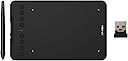
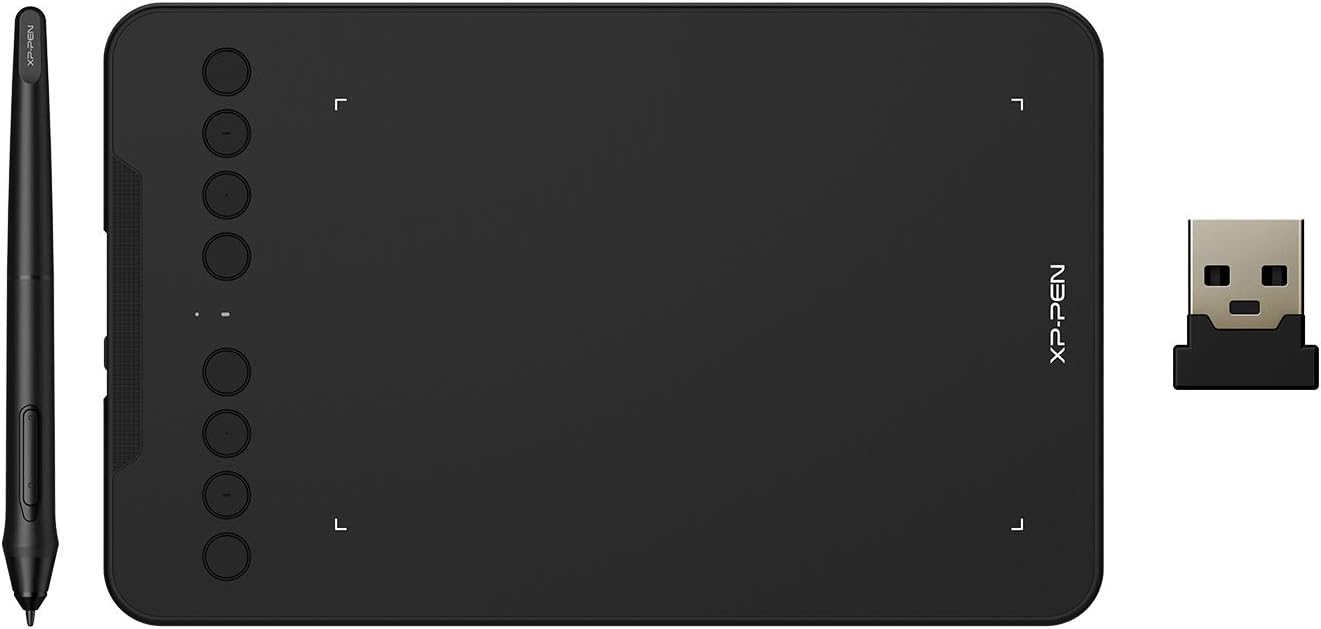
The XPPen Deco Pro LW 2nd is an 11-inch wireless drawing tablet featuring Bluetooth 5.0 connectivity with dual device pairing, a battery-free X3 Pro stylus offering 16,384 pressure sensitivity levels and 60-degree tilt, and a durable metal backplate with ergonomic design. It includes a Mini Key-dial with customizable shortcuts to enhance workflow and supports multiple operating systems, making it a versatile tool for digital artists, animators, and video editors seeking professional-grade performance on the go.


| ASIN | B08P8N751T |
| Active Surface Area | 7.0 |
| Additional Features | 60° Tilt Support, Extra-Slim, Shortcut Key |
| Best Sellers Rank | #76 in Computer Graphics Tablets |
| Brand | XP-Pen |
| Built-In Media | 1x Pen Tablet, 1x Stylus,1x Wireless Receiver, 1x Pen-Clipper, 10x Pen Nibs,1x USB to USB-C Cable, 1x USB to USB-C Adapter, 1x USB to Micro USB Adapter |
| Color | Black |
| Compatible Devices | Desktop, Laptop, Smartphone, Tablet |
| Connectivity Technology | Bluetooth, USB |
| Customer Reviews | 4.3 out of 5 stars 835 Reviews |
| Display Type | LCD |
| Item Dimensions L x W | 10"L x 7"W |
| Item Weight | 0.56 Kilograms |
| Manufacturer | XP-PEN |
| Mfr Part Number | Mini7_Wireless |
| Model Name | Deco mini7 wireless |
| Model Number | Deco mini7W |
| Native Resolution | 1920x1080 |
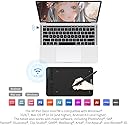
| Operating System | Windows 7 (or later), Mac OS X 10.10 (or later), Android 6.0 (or later), Chrome OS 88 (or later), Linux Operating System Windows 7 (or later), Mac OS X 10.10 (or later), Android 6.0 (or later), Chrome OS 88 (or later), Linux See more |
| Pressure Sensitivity | 8192 Levels |
| Screen Size | 7 Inches |
| Special Feature | 60° Tilt Support, Extra-Slim, Shortcut Key |
| Specific Uses For Product | 3D Modelling,Designing,Drawing,E-Signature,Editing, Writing,Gaming,Online Education,Painting,Remote Work,Teaching |
| Target Audience | Teacher |
| Warranty Description | 1-YEAR |
A**R
Your Ultimate Drawing Companion
I gotta say, I’m super impressed with the XPPen Deco Pro MW 2nd! The responsiveness is spot-on, and setting it up was a total breeze. I’m honestly confused by some of the negative reviews out there, especially about the hover issue—seriously, just make sure you grab the latest drivers and keep them running while you’re using the tablet. The pen picks up all 16K pressure points without a hitch, and the calibration options fit my light drawing style perfectly. The pen stabilization is a sweet feature, especially if you’ve got shaky hands. I haven’t run into the “broken line” problem that some people mention, which makes me wonder if their setup is off. The tablet itself feels really solid, with a sleek design, and it holds up well to regular use. I’m also a big fan of the accessories that come with it, especially the Mini Keydial. It’s super handy and integrates perfectly with Photoshop, making my workflow way smoother. As for the concerns about the surface wearing down the nibs, I’ve found them to hold up just fine for my needs. Plus, the fact that you can replace the surface is a great bonus. All in all, I’d totally recommend this tablet to any artist or educator. It performs like a champ, and for the price, it’s a killer deal compared to the pricier options like Wacom. You won’t regret it!
T**O
Honestly confused why some people give it a bad review
I own the MW 9 inch and the XL 15 inch. I bought my XL months ago and never had any problems with it. Recently decided to buy a travel size MW 9 inch. Absolutely amazing as well. What I am confused about is some of the reviews. *cough* two star rant *cough*. To start make sure to download the latest drivers for the correct device and have it open while you use it. In the application of the XP-pen you can adjust the work space and sensitivity of the pen pressure, so it's perfect for the light drawer like myself. yes it can detect all 16K pressure points, you just need to calibrate it to your liking. it doesn't need to be forced for some detection. The pen stabilization is a great feature when using it outside out of painting applications and you can turn it off or on. Not sure why it's labels to be bad. So if you got shaky hands, this might be good, if you got smooth hands, even better. Another thing, idk why but using two of the same pens from each one Xl and the MW I don't have any wobble, at all. Slow or medium, fast, nothing. I have owned previous drawing tablets including those with a screen, and yet I haven't to detect the wobble from this one. I get smooth straight lines when I draw it. ANOTHER point, hover feature, don't know why you need 30cm above your tablet to draw, you are drawing, not playing darts. Just having your hand resting on the device and the pen distance from your tablet shouldn't even be that far to begin with. Customer service is good, I've had some problems with my devices before in the past and they gladly replaced with what I needed. Cable doesn't work? Got it replaced in 3 days. Screen faulty? Got it replaced in less than a week after returning my faulty one. (FYI from their official website if you don't want to go through amazon) Last thing, never gotten the issue of "broken line". Again, I'm so confused how this person such got such a bad experience and I would like to share my own in case anyone is wondering if this is really good or not. And read first, this tablet doesn't have a screen. in the end, I do recommend this, it's great, it feels smooth, quality is great. Been drawing since 2020. Yes there are much cheaper options out there and you may not need all the fancy stuff this tablet offers, so if you are on a budget, maybe go with the deco pro 1. Wired is much cheaper btw. Or even a regular deco or deco fun which are even cheaper. Thank you for reading this long wall of text.
C**T
Good tablet for the Mac with some drawbacks
Out of the box: great packaging, nice pen case. Try it out: on the Mac, without driver installation the pen on the tablet moves the mouse, left click works a little, no right click, basically useless. Driver installation asks for keystroke monitoring permission (twice, denied), and asks for accessibility permission (have to accept otherwise it doesn't work). Each time the software starts it asks for more permissions (denied). Hooked up the tablet with USB-A cable. Pen on tablet works fine and is responsive and feels good, buttons on pen work. Movements are smooth and soundless. Works fine for me as a left-handed person since there are no buttons on the tablet. At times something weird happens where a menu doesn't work or selections don't turn off. Solution is to quit the driver software and restart. Don't leave the driver running if you don't use the tablet, weird menu selections will happen, the driver interferes with some mouse commands. Basically the driver can be buggy and invasive but mostly works fine while using the tablet and I don't see it working when I quit the driver app. I'm not a super user, I didn't try the extra device with buttons and I didn't try any advanced pen sensitivity trials, I didn't try to set any fancy settings. It works fine for the average user drawing and painting digitally with default settings. Overall, OK value for money. Driver software should be in the App Store so you can trust it better.
R**P
A great purchase with high value to price ratio
**XP-Pen Deco Pro LW Tablet Review** Before diving into the review, I think it’s important to provide some context about my background. I’m a senior 3D artist with over 25 years of experience across feature films, television, games, and virtual reality production. I’ve served as a supervisor on multiple major films, and before entering the entertainment industry, I worked as a manufacturing engineer in Silicon Valley, where I specialized in writing technical documentation and procedures. Additionally, I’ve built my last five computers from scratch, so I’d like to think I know what I’m doing when it comes to tech. **XP-Pen Purchase Date**: 2024/10/01, delivered 2024/10/02 **System Specs**: - Motherboard: ASUS Z790-E WiFi - RAM: 128GB - GPU: RTX 4090 - Total Storage: 20TB - Monitors: 2x 4K displays For most of my career, I’ve relied on tablets from "that other company" (which I won’t name because this isn’t about them). However, I’ve always felt their products were vastly overpriced. I initially had my eye on the Artist Pro 19 (Gen 2), but given the current state of the visual effects and games industries, which are facing a severe downturn, I needed to make a more cost-effective choice. Freelancing has allowed me to make ends meet, but I had to stick with essentials rather than splurging on more expensive tools—even if they might boost my productivity. That’s why I opted for the Deco Pro LW. ### REVIEW **TL;DR** For the price, I’m extremely satisfied with the XP-Pen Deco Pro LW. While I encountered a few issues, they seem more related to my workstation setup than the tablet itself. I would definitely buy this tablet again. If I had the budget, I wouldn’t hesitate to upgrade to the Artist Pro 19 (Gen 2) because the quality-to-price ratio of XP-Pen products is impressive. **Packaging** I was pleasantly surprised by the packaging quality. I expected something lightweight and basic, but the box was sturdy and well-organized, with all the contents securely protected. **SCORE**: 5/5 **Documentation (Quick Guides)** The printed materials are well-done and feel more premium than I expected. While I wish the text in the manual was larger (a personal preference), the content is clear and easy to follow. The step-by-step instructions for setup are generally good, though there are some minor grammatical issues. The biggest problem lies in the English translation during the Bluetooth setup section, which could be clearer. **SCORE**: 4.5/5 **Setup** The Bluetooth setup instructions in the manual suggest pressing the power button for 3 seconds to turn on the tablet and 6 seconds to enter pairing mode. However, I found that holding the button for 3 seconds didn’t turn it on, and holding it for 4.5–5 seconds immediately put it into pairing mode, which contradicts the manual. Initially, I couldn’t get my PC to detect the tablet via Bluetooth. After troubleshooting, I discovered that the "Allow Bluetooth devices to find this PC" setting was disabled on my system. Once enabled, the tablet paired easily. The wireless shortcut remote uses a USB dongle (not Bluetooth), but setup through the configuration app was simple. Since the Bluetooth issue was caused by a setting on my PC, I won’t deduct any points. **SCORE**: 5/5 **Use** Upon first use, I noticed some lag and lack of smoothness when using Bluetooth, particularly in Maya and ZBrush. Using the USB-C cable instead eliminated the issue, so I’ll be spending more time tweaking my system to determine if the problem lies with my hardware or the tablet. Given that this is my first day with the tablet, I plan to further investigate and resolve the Bluetooth performance. **SCORE**: 4.5/5 **Overall**: **SCORE**: 4.9/5 I’m very happy with the Deco Pro LW and excited to explore more of what it can do. Edit 11/3/2024: After using the tablet for some time I have raised the score, and moved the stars from 4 to 5 to better reflect the quality of the product. It is my hope that, in the future, I will be able to get a Artist Pro 19 (Gen 2) based on my experience with this tablet.
O**R
A big and nice drawing tablet
I'm just a hobby drawer who was upgrading from a medium intuos tablet. I did not want to get a screened tablet so I was looking for a regular drawing tablet. For the price for this one I did not expect it to be this big! It have a 32 inch 4k monitor that I use to game/draw, and have had no issues with the tablet. The fact that it is so big, makes it easier to draw as it almost matches 1:1 to what I see on the screen. Pressure feels nice and better than my previous tablet and have no issues there. The pen feels much better, both the way it feels to draw and to hold the pen. Having the external keys is also a very nice addition that I can move around where ever I need to. I do not use the Bluetooth option and always have it plugged in, so I can't comment on those functions (both the tablet and drawing keys are plugged by wire). One issue I have, although very very minor, is that when I turn off my computer, the blue LED constantly flashes in quick succession unless I unplug it from the cable. The manual/online states this means it is looking for a Bluetooth connection. My guess is that since it is plugged in, it constantly keeps looking for the connection. Unsure if this affects the battery inside since I always have it plugged in and do not plan to use it, but something I wonder is affecting it having it look for a connection 24/7 when I'm not using my computer.
N**M
I could not get the wireless function to work with a Mac
I like the ease of use and set up as long as the cords are connected. But the major reason for buying this product was to be able to use it wireless around my classroom. So give the ability to annotate the board/presentation. The accuracy and setup is brilliant. The driver works excellent. I love the product. I still need to test it with an android phone, but the drawing tablet works well with the computer as long as it's corded
B**T
Honest review: Affordable, Priced well, Delivers results.
XP-Pen Deco Pro LW (Gen 2) – Affordable, Seamless, Wireless, and Seriously Impressive I specifically chose this model because I wanted a tablet with a large working area that didn’t break the bank. The Deco Pro LW (Gen 2) hit that sweet spot — and being on sale made the deal even better. From the moment the box arrived, the experience was great. The packaging was neat and secure — everything was individually wrapped, almost like unwrapping a giant piece of candy. (Just don’t forget to remove the protective film on the tablet!) After a smooth plug-and-play experience, I was up and running in minutes. Wireless pairing took a moment (since I had to scroll through a bunch of Bluetooth devices), but it connected without a hitch. The drivers installed easily, and everything just worked. The tablet comes with USB-C charging cables, extra nibs, and a wireless Express Key Remote — all of which worked flawlessly. I’m using it with a 2023 ASUS ROG Strix Scar 18, powered by an Intel Core i9-13980HX, GeForce RTX 4090, 64GB DDR5 RAM, and a QHD 240Hz Nebula Display. This is a high-end machine meant for demanding creative work, and the Deco Pro LW keeps up effortlessly. Drawing Performance The stylus is a standout. With 16,384 levels of pressure sensitivity, 60° tilt support, and near-zero latency, it delivers an incredibly smooth and precise drawing experience — whether sketching, painting, coding, or even 3D modeling. It’s easily one of the best pen experiences I’ve had on a non-display tablet. And yes, it performs exceptionally well with video editing, code workflows, and tools like Blender and Unreal Engine. If your trying to get a precise pressure level adjust it through your pens software. There is a review here that says you can't access all presure levels. Well you can be rest assured (You'll likely need a very steady hand like me) all 16,384 levels of pressure are indeed accesible. Wireless + Build Quality Wireless performance has been rock solid. I haven’t experienced any input lag or dropped signals — though, if you're using outdated hardware, an old Bluetooth dongle, or missing drivers, results may vary. Battery life has been excellent, and charging via USB-C is quick and convenient. Build quality is top-notch. It’s sleek, lightweight, and durable. The drawing surface has just the right amount of texture for a satisfying pen feel. It does come with a glove, though I prefer to draw without it. Troubleshooting Tips (Read Before Reaching for Support!) 1. Experiencing Lag? Lag is usually due to outdated drivers or unoptimized software. I noticed minor lag in Blender 4.4, Unreal 5.6, Sketchbook, and Krita before updating. Head to XP-Pen’s official website and download the latest driver specific to your model. After a 2-minute install, the difference was immediate — input latency dropped to near-imperceptible levels. 2. Customize Your Workflow Once you’ve installed the driver, download XP-Pen’s configuration software to fine-tune pressure curves, customize pen buttons, and set up shortcuts. This step dramatically improves workflow efficiency. 3. Mouse Flickering? If your cursor flickers when using a mouse, it’s likely because the pen is still on the tablet. Make sure it’s lifted at least 1.5 inches from the surface or off that tablet — that’ll resolve the conflict instantly. 4. Can’t Find Your Device on Bluetooth? If your tablet is plugged in, you don’t need Bluetooth — unplug the XP-Pen USB if you’re trying to pair wirelessly. Hold the power button for 6 seconds until the LED starts blinking (that’s pairing mode). Then enable pairing from your system's Bluetooth settings. If you’re still stuck, double-check that your computer’s Bluetooth is turned on, drivers are up to date, and the Bluetooth Dongle receiver (if you're using one) is properly connected. 5. Still Not Working? If you’ve tried all of the above and you're still having issues, your device could be defective or your system might have compatibility issues. Before contacting the manufacturer, call Amazon support — they’re often quicker and can replace or refund faster than product support lines. Final Thoughts The XP-Pen Deco Pro LW (Gen 2) is affordable, elegant, and packed with professional-grade features. It’s wireless, precise, and easy to set up — especially if you follow the steps above. I highly recommend it for digital artists, developers, editors, or anyone who wants a responsive, large drawing tablet without paying Wacom prices. Rating: ★★★★★ / 5 – Zero regrets, fantastic purchase. Performs like a premium tablet. Priced like it shouldn't.
E**R
Lame Quality, Terrible Support; This is a Lemon
PRO: Nice looking, kinda sweet how the corner guides light up when the pen engages, feels good in your hands. CON: The actual component quality is Not There. Customer support SUCKS. And frankly, those two things are dealbreakers. Miserable morning trying, and failing, to get this junk to work. I bought this to replace a nine year old Intuos 4 that was looking a little beaten down. I thought the competition would’ve caught up to Wacom by now, but nope. The Deco Pro LW Gen 2 arrived pretty much dead in the box. Despite the drivers claiming they worked on OS X 10.13 (stuck there for work reasons), they’re squirrelly as heck, the installation walkthrough is confusing, and the manual is missing directions. Like you’ll just be staring at the screen telling you to “Connect the tablet” as you plug & unplug and plug and unplug and... You get the idea. I was never able to get it either paired to Bluetooth or even stable via the provided USB cable. Even connected by wire the cursor would just spastically herk & jerk all over simply hovering the pen without moving over the tablet; it’s completely useless clicking anything (see video). I was on XP-PEN’s tech support chat for almost an hour when the tech guy just gave up and disconnected me and then blocked my IP so I couldn’t restart the chat! When I tried on another computer in the house he disconnected and blocked me again. Ugh. Do any of these clowns get customer service training? Not that he was much help since he seemed to be obssesed with determining whether I was near a magnetic source that would cause interference. Listen, I’m not working next to a freaking magnet. And my Wacom tablet semed to not have a problem for just shy of a decade, so I don’t know what he’s on about other than trying to put the blame for the XP-PEN tablet not actually working on me. So, is the tablet bad? The pen? The Bluetooth chip? All of ‘em? Who knows. They offered to send me another pen... in a week or two. C’mon man, I can get an entire replacement from Amazon in a day. Clearly trying to keep your customers isn’t a priority. You can’tjust throw one in the mail today? But then, why would I replace this? I’ve been on Wacom for damn near twenty years (Intuos 3 & 4) and they’re just plug & play. The Deco Pro is NOT. And I’m suspicious that even if I got the thing working it’d drop signal again down the road when I can’t return it. So yeah, I’d avoid this one. Yes it looks great, yes it’s the Right Price. But no, it’s not quality equipment. They clearly have component issues. If you go to the r/XPpen sub-Reddit you’ll see lots of people with installation problems. And you gotta ask yourself if you want to Get To Work or waste time trying to figure out why XP-PEN tech support won’t take your call?
K**H
Good
I bought this for my grand daughter it works really well and she is happy.
A**.
Top!
Das Grafiktablett ist echt eine Erleichterung beim retuschieren von Bildern.
F**A
No la compré, pero casi: muy buena opción si vas a sacarle partido
Estuve a punto de comprarla. Vi un montón de reseñas, comparativas, vídeos... y todo apuntaba a que es una muy buena tableta gráfica por su precio. Diseño pro, buena sensibilidad, inalámbrica, y compatible con mil programas. Pero siendo honesto: no me animé porque ya tengo otro modelo que cumple y sé que la acabaría dejando aparcada. No por la calidad (que parece top), sino porque hay que ser realistas con lo que uno realmente va a usar. ✅ Pros (según lo investigado): diseño elegante, rueda táctil muy precisa, buena duración de batería, muy cómoda para dibujar o retocar. ❌ Contras (lo que me echó para atrás): algo grande para mi escritorio, y me pareció demasiado avanzada para el uso básico que realmente le doy. Si estás buscando una tableta seria para diseño, ilustración o edición, creo que esta es una apuesta segura. Yo no la compré, pero estuve muy, muy cerca.
M**E
Easy install and very accurate
Easy to install and works great. Working with it is pleasant and very accurate.
D**A
XPPen Deco mini7W
A great wireless drawing tablet! I would totally recommend, never lagged on me. The 8192-pressure stylus feels responsive, the size is compact yet comfortable, and it’s easy to set up with the dongle. Perfect for digital painting and sketching on the go.
Trustpilot
1 month ago
5 days ago