


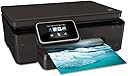


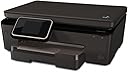
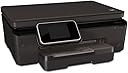
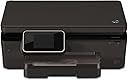
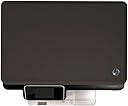
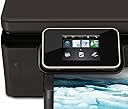
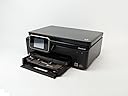

HP Photosmart 6520 e-All-in-One Printer
Product ID: 62894263
🌱ENERGY STAR qualified
📶Wireless printing
🖨️All-in-one functionality
📸 Print, Scan, Connect – All in One Stylish Package!
The HP Photosmart 6520 e-All-in-One Printer is a versatile printing solution that combines eco-friendly features with advanced wireless technology, allowing users to print, scan, and copy effortlessly without the need for a PC.
| Additional Printer Functions | Copy, Scan |
| Asin | B0099MS8M2 |
| B W Pages Per Minute | 22 ppm |
| Best Sellers Rank | 294,174 in Computers & Accessories (See Top 100 in Computers & Accessories) 544 in All-In-One Printers |
| Box Contents | Envelopes, Paper |
| Brand Name | HP |
| Color Depth | 24 bpp |
| Color Pages Per Minute | 22 |
| Colour | black |
| Compatible Devices | PC |
| Control Method | App, Touch |
| Controller Type | Android, iOS |
| Customer Reviews | 4.0 4.0 out of 5 stars (297) 4.0 out of 5 stars |
| Display Type | Touchscreen |
| Dual Sided Printing | Yes |
| Duplex | Automatic |
| Global Trade Identification Number | 05053086221635 |
| Hardware Interface | USB |
| Ink Colour | Multicoloured |
| Item Weight | 6.35 kg |
| Manufacturer | HP |
| Maximum Copy Resolution Black And White | 600 dpi |
| Maximum Copy Resolution Color | 4800 x 1200 DPI |
| Maximum Copy Speed Black And White | 23 ppm |
| Maximum Print Resolution Black And White | 600 |
| Maximum Print Resolution Color | 600 |
| Maximum Sheet Capacity | 100 |
| Maximum Supported Paper Size | A4 |
| Model Name | Photosmart 6520 |
| Model Number | CX017B |
| Model Series | PhotoSmart |
| Network Connectivity Technology | Wi-Fi |
| Number Of Trays | 1 |
| Other Special Features Of The Product | Auto-Duplex |
| Output Sheet Capacity | 100 |
| Paper Size | A4 |
| Print Media | Envelopes, Paper (plain), Transparencies |
| Printer Output Type | Colour |
| Printer Type | Inkjet |
| Resolution | 1200 x 2400 dpi |
| Scanner Type | Photo |
| Specific Uses For Product | [INFERRED: home use, small office use, photo printing, document printing] |
| Total Usb 2 0 Ports | 1 |
| Total Usb Ports | 1 |
| Upc | 886112774127 886112774110 |
| Warranty Type | limited warranty |
| Wattage | 18 watts |
User
Great everyday printer
I purchased the HP 6520 all in one printer about a month ago, since it arrived it has served every printing need I have had with ease. This is not the first printer that I have owned, and I am pretty sure that is the same for most of you reading this. When purchasing this printer I considered a number of factors including, ink price, size, wireless accessibility and also my existing product compatibility.Opening the box and installation was extremely simple, out of the box and printing with my idevices in a matter of 2 minutes, which was mainly due to trying to get it out of its excessive packaging. The windows installation disk completed no more than a minute later.This printer has been used daily and not once has it dropped wifi connection, and has printed every time with high-end quality and consistently. The only exception to this was the print run seconds before the ink warning lights came on, this print was showing visible horizontal lines. The ink that came with the printer lasted about 30 days, and the replacement ink value pack to replace was about £20. This is more than reasonable considering that with my old kodak printer ink cost £16 and printed about 30 pages less than this.In terms of physical bulk the printer is compact and has easy access part to sort out any paper jams, which to date i have not had any. I also liked the built in power supply without a bulky box laying around behind the desk. In terms of features of which this printer is well stocked, my favourite is the direct printing from tablets or laptops without the need for the router to be involved, great for energy saving. I also like the touch screen icon controlled interface, it makes it very easy to navigate. The companion apps on the idevices are also a welcome addition to its feature set, making life even easier.In terms of my rating i have given this a 5 star out of 5, 4 of those stars for the product and the extra for the support structure from HP by ways of apps and support site.
User
HP air printer 6520 e all in one.
I noticed that some reviewers who had the 6000 series printers were having trouble with paper jams. Paper has to be 'stacked' and 'feathered' before being placed in any type of printer and photocopier. Paper has two sides. A gloss side and a matt side. The printing should be on the gloss side. Stacking and feathering is like shuffling a pack of cards. Before loading new paper always open the stack by using the thumb to run the paper so that individual sheets are loosened, shake the stack and mess it up, then get it back into a square by banging the paper edges on the desk. This is supposed to stop sheets sticking together as when the machine tries to pull up two sheets at a time and gets jammed. I've assumed it is to do with static electricity causing the paper sheets to bind but I've never discovered if that is true.I unpacked a securely and tightly fitting printer from the delivery box with the assistance of the wife. I had unplugged my old printer and kept the old power and usb leads in place. The printer is supplied with a power cable but not a usb cable. Maybe this is because it is wi-fi. I couldn't be bothered to faff with the wi-fi setup and discovered that I had to choose between one or the other. As I chose connect to the PC with usb cable I was informed that if I wished to receive updates automatically to the printer I had to dispense with the usb cable connection.It took me a week to setup as it is virtually manual less. The supplied booklet turned out to be a couple of pages in every language under the sun, unlike the prevoius Dell printer which arrived with 132 page English owners manual, which i missed. I placed the CD in my PC but chose the on line set-up which went without a hitch, as the CD did not auto run.So far so good. It switches off itself after 2 hours, again the choice is 2 hours or never, and nothing in between. it appears. The touch screen does need a firm contact not a light brush but it is intuitive. Unzipping the adhesive packing plastic tape meant that I dismantled the loading tray and was faced with the conundrum of pushing the top piece back which after some time I realised ahd to be pushed fully home to rest on the loading tray. Installing the ink required some thinking as well in the absence of a manual relying on pretty pictograms as a guide. The lack of a full maual means the loss of one star. What I do like is the double sided printing which again one has to work out for oneself, namely it prints one side then delivers half a sheet which it is not prepared to let go, refer to touch screen which says to turn the paper over then print again where upon the sheet goes back inside the printer. The specimen photo and photo paper produced a terrific print, so I'm looking forward to copying photos. Again because of the lack of instructions my first paper copy was lopsided, on examining the glass screen I saw a little arrow pointing into the corner so next time I pushed the paper to the corner, leaving a clear glass border on 3 sides.UPDATE: No problems encountered. On saving ink and paper I have set the default printing mode as 'draft' with double sided printing. In Windows 7 go into Control panel - Devices and printers - open HP Photosmart - then select 'draft' and double sided, I chose to flip to long side. If one needs to alter this selection at the time of printing click 'preferences' in the printing dialogue box and select according to preference. I find 'draft' perfectly acceptable for everyday use and is saving ink at the same time.
User
Good value printer
This printer was bought to replace my 2003-vintage HP 6127, which no longer would work with the Mac OS Mavericks.Delivery was prompt at comparable cost from Amazon as from Staples. First impressions were of a relatively flimsy construction, compared with the shipyard build of the 6127.Setup was eventually ok, after downloading the latest driver from HP. However, the touch screen was hard to use and I was unable to enter the WEP code for my wifi router , as it would not change from lower to upper case to take the password. However, by pressing a button on the router, the necessary information was passed to the printer and the setup was completed. There appears to be two versions of the printer driver in my printer control panel page, so that needs to be adjusted from one to the other, depending on whether it's text or photo printing. So about 2.5 stars for setup - from a non-computer geek. An expert would probably be less challenged and rate it higher.However, in use, the printer is pretty good: fast text printing, in draft and double-sided if required, or good quality fine print. Photo printing is pretty impressive, with very good A4-sized prints appearing at a good speed. Photocopying is fast and very good quality too. Have only scanned one document, and that also was fine. About 4.5 stars for ease and excellence of use.Given the challenge of entering the setup details on the touch screen, 4 stars seems about a fair overall rating.I would recommend this printer to a friend.
User
Won't Print Colour
Brand new out of the box, and won't work. Cartridges definitely fitted properly and full of ink. Colour document - machine makes all the motions of printing and spits out a blank page. If it's a colour and black and white mix, it just leaves blank areas where the colour should be. Gone through all the trouble shooting and run the clean print head programme six times.Worse still, HP does not offer home printer support outside the hours of 8.30am to 6pm Monday to Friday, when of course we are all at work and not able to spend hours on the phone in front of our home printers. Do they expect us to waste precious holiday days sorting out their sub-standard products?Do not waste your money on an HP product.ETA: Judging by the number of 'unhelpful' votes, HP fans are very protective.So, I'll add this:I'm fairly good with technical things, and have never had any trouble setting up a new computer/gadget/printer before. I spent three or four hours on HP's website following trouble shooting guides. I eventually managed to speak to someone at HP, who agreed that the printer was faulty and told me to return it. I chose to return it for a refund, rather than a replacement. I replaced it with a Canon which was slightly more complicated to set up, but which works perfectly.I think I'm justified in rating the item one star, in that it was brand new and faulty. It didn't work and shouldn't ever have ended up on my doorstep. Assistance was also extremely difficult to come by at HP.
User
Good printer form home / small business use
Have had HP printers for a while now and the last two have been all-in-ones. When my last one finally gave up the ghost I thought it may be worth looking at other vendors to see what else was out there. After much musing and researching I found myself back at HP and the 6520 e-All-in-one. My main requirement this time round was the auto duplex feature and printing from my iPad/iPhone/other smartphones - all of which work a treat.Very easy and quick to set up. Had it connected to my wireless network and printing within about 10 mins of removing all of the packing. The printer also has the Internet printing feature which is a nice to have but not essential.Print quality is what I have come to expect from HP for both photos and office type documents. The scanner/copier function is also solid and about what you should expect for the price. There is a nice web utility for managing the printer which tells you how your ink is doing and control scanning.For those with kids there are also a lot of free worksheets, puzzles and colouring sheets from various Disney and other providers to keep them entertained.
User
A good all round home printer
Excellent all round printer. It's really easy to set up, and works via wifi with my PC, laptops, iPads and androids. Everything is really intuitive, with a nice touch screen display walking you through each process. It's relatively quick, a little noisier than my previous Canon all in one printer, and good print quality. I also like the ability to be able to send emails of documents to the printer which it will automatically print. Cartridges are not too badly priced either. A good all round printer, it's good enough as a scanner, copier and photo printer for most homes
User
Good little machine
Arrived in time for Christmas which was perfect as I had bought it for my wife for that occasion. Unwrapped and installed in a couple of very easy steps. We are HP veterans, this is our fifth printer and our fourth HP. We changed from a very early wifi model as it didn't have AirPrint capability, not a problem though as our old one has been recycled through the family and now resides at my fathers house instead. Both use the same ink cartridges so we have commonality.Prints very quickly from either laptop, pc or I-pad. Scans well also, not tried copy function yet but sure it will also perform faultlessly as well.Touchscreen needs a firm pressure to work for me, but my wife has not had any issues. Not quite a month old yet so will update if anything crops up
User
Not good for photo printing
This is the most annoying and frustrating printer I have ever owned - on several occasions I have felt like throwing it across the room! It constantly tells me that the paper tray is empty (when it is not), it jams paper, it picks up more than one sheet at a time (sometimes as many as four at a time) but the worst thing about it is that it just will not print photos properly. I don't know how much ink or how many pieces of photo paper I have wasted trying to get it to print properly - sometimes it just prints a small section of the photo, other times, it goes through all the motions and makes all the usual noises of printing but then throws out a blank piece of paper. I am totally mystified by it. The print quality isn't wonderful either for photos and it does seem to use a lot of ink. I bought this to replace my Canon inkjet that broke, but I will be ditching this one and going back to Canon, I'm afraid.On the plus side though, it is an ok scanner and photocopier and is fine for printing A4 documents, as long as you can put up with the multiple page pick-up, etc. But if you are looking for something that will print quality photos aswell, then I would recommend looking elsewhere.
User
Pire imprimante
Cette imprimante refuse d'imprimer le noir au bout de 2 ans de loyaux services.J'ai lu sur internet que c'est un problème récurrent donc clairement il y a un algorithme là dedans qui "l'autodétruit" au bout d'une certain temps..À une époque où nous cherchons à économiser notre planète on nous force à jeter du matériau qui fonctionne.
User
Five Stars
It works great but it is a little noisy
User
I just received this product on April 20 and as ...
I just received this product on April 20 and as of today it has stopped working. The return window closed on May 20 which just over a week ago so I don't know what to do with it.
User
I purchased this for twice the price of a newer ...
I purchased this for twice the price of a newer version because I could get remanufactured ink for a fraction of the cost of the newer version ink. I rather pay $3 for an ink cartridge rather than $19 for the same amount. My only complaint about the printer is that on duplex printing (printing on both sides of the paper automatically) The borders change. It shrinks the images and makes the borders on the edges of the paper a little bit larger. It's frustrating but the ink is so cheap . . . I'll live with it. It doesn't change the borders if I only print on one side of the paper, only when I use duplex printing. I think the work around is in changing the print drivers:From time to time it may be necessary to try using an alternate print driver for either testing purposes, or as a work around when the regular print driver isn't working. The steps below are only for Windows XP, Vista, 7, and 8. I don't know the paths for the Mac OS. If I learn the Mac steps, I'll post those as well.To use an alternate print driver for HP printers in Windows XP:1. Click on the Start menu.2. Click on Control Panel.3. Make sure you have it set to Classic View.4. Open the Printers and Faxes folder.5. Right-click on your printer.6. Select Printer Properties.7. Click on the Advanced tab.8. Click on New Driver.9. Click Next.10. Select HP from the first list.11. Select Deskjet 990c from the second list.12. Click Next.13. Click Finish.14. Click Apply.15. Click OK to close the window.To use an alternate print driver for HP printers in Windows Vista:1. Click on the Start menu.2. Click on Printers.3. Right-click on your printer.4. Select Printer Properties.5. Click on the Advanced tab.6. Click on New Driver.7. Click Next.8. Select HP from the first list.9. Select Deskjet 990c from the second list. If the 990c driver isn't there, use the Deskjet 450 driver.10. Click Next.11. Click Finish.12. Click Apply.13. Click OK to close the window.To use an alternate print driver for HP printers in Windows 7:1. Click on the Start menu.2. Click on Devices and Printers.3. Right-click on your printer.4. Select Printer Properties.5. Click on the Advanced tab.6. Click on New Driver.7. Click Next.8. Select HP from the first list.9. Select Deskjet 450 from the second list. If the 450 driver isn't there, use the Deskjet 990c driver.10. Click Next.11. Click Finish.12. Click Apply.13. Click OK to close the window.To assign an alternate print driver in Windows 8:Hold your mouse arrow in the lower right, or upper right, corner of the screen to bring up the Charms Bar. If you are using a touch screen, you can swipe your finger from the right side to the left.Select the Search Charm.Under the search box, click on Settings.In the search box, type Devices.Click on Devices and Printers.Right-click on your printer.Select Printer Properties.Click on the Advanced tab.Click on New Driver.Click Next.Select HP from the first list.Select HP Deskjet PCL3 Class Driver from the second list. You can also use either the Photosmart PCL3 class Driver, Officejet PCL3 Class Driver, Deskjet 990c or Deskjet 450 driver.Click Next.Click Finish.Click Apply to save the changes.Click OK to close the window.
User
Good
Met my expectation just as needed. Good product
Trustpilot
1 week ago
1 month ago