Some deliveries may take a little longer than usual due to regional shipping conditions.
DOWNLOAD THE APP


Customer Services
Copyright © 2025 Desertcart Holdings Limited
DOWNLOAD THE APP

🎞️ Relive & Revive Your Memories — Digitize Like a Pro!
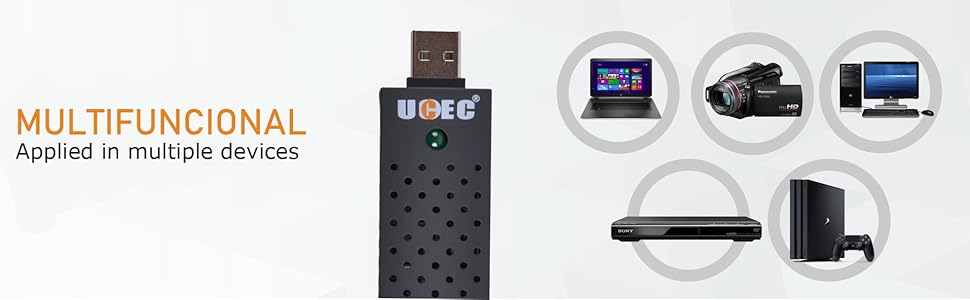
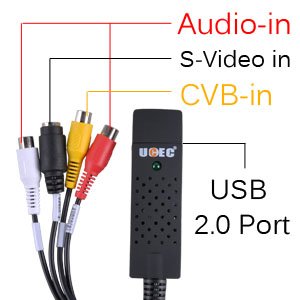
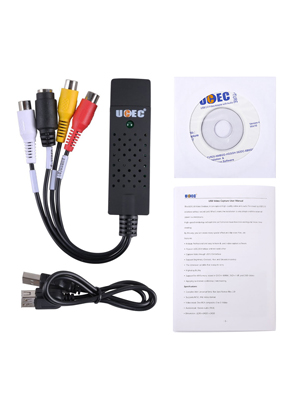
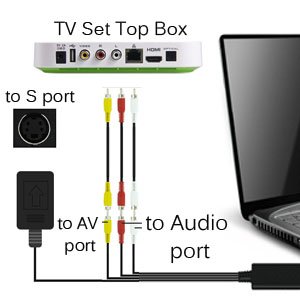
The UCEC RCA to USB Converter is a compact, USB 2.0-powered capture card designed to convert analog video signals from VHS, VCR, and camcorders into digital formats. Compatible with Windows 2000 through Windows 10 and popular capture software, it supports DVD recording and offers adjustable video settings for enhanced quality. Ideal for professionals and enthusiasts looking to preserve vintage footage with ease and flexibility.







| ASIN | B00WSAWZ1M |
| Best Sellers Rank | #116 in Internal TV Tuner & Video Capture Cards |
| Customer Reviews | 4.0 4.0 out of 5 stars (1,742) |
| Date First Available | June 23, 2020 |
| Is Discontinued By Manufacturer | No |
| Item Weight | 3.52 ounces |
| Item model number | 4330186177 |
| Manufacturer | UCEC |
| Package Dimensions | 6.42 x 6.18 x 1.54 inches |
R**R
Cheap and Effective on Linux with ffmpeg
Product Details: The Color packaging was labeled as: Video DVR Model No.:DC60 A white sicker on the packaging says:: X00430RLND UCEC RCA to USB... Made in China-10-17 I am using this product on an ubuntu linux distrobution: The first thing I tried was to capture using vlc: Media -> Open Capture Device Video device name: /dev/video1 Audio device name: hw:1,0 Video standard: NTSC I eventually got this to work but I found it unreliable. (Your mileage may vary.) It was, however, a simple way to identify the audio and video device names. I prefer ffmpeg batch mode, so after, hours of trial and error, I decided on the below ffmpeg coomand: ffmpeg -f alsa -i hw:1,0 -acodec aac -ac 2 -f v4l2 -i /dev/video1 -vcodec libx264 -r 60 my_movie.mp4 Important: 1. replace hw:1,0 with your own linux alsa audio device specification. 2. replace /dev/video1 with your own video device name. The above will start recording when you enter the command. When done type Ctrl-C to finalize the output file and exit gracefully. note: The above does NOT enable you to watch the video while it is being recorded. I wasted a bunch of time before realizing that that was not necessary. note: alsa stands for Advanced Linux Sound Architecture note: v4l2 stands for Video for Linux 2 Linux will name the devices as they are plugged in. The video devices increment like: /dev/video0 /dev/video1 /dev/video2 ... The audio devices increment like: hw:0,0 hw:1,0 hw:2,0 ... ASSIDE: The audio device syntax is hw:cardNumber,deviceNumber (counting starts from zero) e.g. hw:0,0 means 1st card 1st device in card e.g. hw:1,0 means 2nd card 1st device in card (a complex card can have many devices but this has only 1) Suggestion: Use trial and error, making short recordings until you find ffmpeg settings that work. You will need to install ffmpeg and other requirements before you try this. (the usually linux stuff) e.g. sudo apt-get install ffmpeg e.g. sudo apt-get install v4l-utils ------ ------ Further Gory Details you probably do not care about ------ Other ways to identify the USB audio and video device designations -------- hint: Use /bin/ls to list devices before and after plugging in your card. (my example after plugging is below) ls -l /dev/v4l/by-id/* lrwxrwxrwx 1 root root 12 Dec 23 18:59 /dev/v4l/by-id/usb-Generic_HD_WebCam_200901010001-video-index0 -> ../../video0 lrwxrwxrwx 1 root root 12 Dec 24 02:36 /dev/v4l/by-id/usb-MACROSILICON_AV_TO_USB2.0_20200909-video-index0 -> ../../video1 ls -l /dev/snd/by-id/* lrwxrwxrwx 1 root root 12 Dec 24 02:36 /dev/snd/by-id/usb-MACROSILICON_AV_TO_USB2.0_20200909-02 -> ../controlC1 The above is a good way to find the name of your video device. As you can see above my MACROSILICON is currently the video1 device on my laptop. The audio designations are a bit trickier because they uaes alsa nomenclature. (alsa => Advanced Linux Sound Architecture) I used the arecord utilty to list audio devices both before and after install. arecord -l **** List of CAPTURE Hardware Devices **** card 0: PCH [HDA Intel PCH], device 0: ALC255 Analog [ALC255 Analog] Subdevices: 1/1 Subdevice #0: subdevice #0 card 1: MS210x [MS210x], device 0: USB Audio [USB Audio] Subdevices: 1/1 Subdevice #0: subdevice #0 Notice card 1: above, this showed up only after pluggin in the vido capture device into the usb port, so from that I can tell it is card 1: device 0: which gets the ffmpeg designation of: hw:1,0 You can get even more geeky information by experimenting with lsusb as follows: lsusb Running lsusb as above before and after plugging will help you identify the ID. (mine was 534d:0021) Once you have the ID you can dump verbose information about the device. lsusb -d 534d:0021 -v
P**L
Good solid inexpensive choice to copy those old camcorder videos
Overall a solid inexpensive product that works pretty well. It is hard to determine if the video resolution / quality is affected by the product - maybe a little but for the price I say this does work quite well. I agree with others that the software is 'clunky' but it does work and there is a LOT of options for output - so many that I had to research and try out to determine the best output options for me! There are MP2 and MP4 and several DVD output options (NTSC and PAL) and other various output options I did not mention. The MP2 option allowed for a number of output resolutions (horizon/vertical lines of resolution) while other options had the resolutions greyed out. I found that there could be problems with some formats playing in a DVD player for example - but I plan to use my Win laptop and all the formats I tried run fine on Win10. One thing is that I could not get MP2, MP4, or DVD FORMATS to run on my iPhone (wanted to stream to TV - loaded file to iCloud then to phone) maybe this can be done - by no luck yet. The included software did load and work the first time on a home win10 laptop - 64bit - i3 Intel processor 2.0 GHZ. Video stream/bitrates were fine with the standard defaults - but when I tried to change things - like increase bitrates I saw no real improvement in quality but the file sizes jumped up a lot (a LOT) and video jumping/skipping did occur - so I used the standard default with no skipping. Standard DVD equivalent resolution file sizes ran about 3 GB per hour so be prepared for big files! I have copied from Sony Hi8 and MiniDV with no issues. I used the RCA video and Svideo inputs and both worked fine. I did think Svideo was failing at first (no picture) but just needed to click a button in the software then a clear pic on my laptop to copy! Update: after a week of copying dozens of Hi8 videos from my Sony camcorder - I have some tips. I am getting really great quality copies by using the s-video cable and selecting MP-2 with a bitrate of 8000. This is a higher bitrate than standard settings but it results in very good copies. Your computer needs to handle this higher bitrate for this to work. Lower bitrates were resulting in bad video with lots of motion artifacts. Note that 8000 bitrate will need about 3.7 gig per hour of video.
T**R
Serves its purpose at a very affordable price.
This little unit is great for hooking up old gaming systems or VCR units to your computer. The downside is that you are most likely going to be using the software that came with it which is actually pretty good, but not too many alternatives out there. This is not the company's fault by any means, they do provide software which helps a lot, but the lack of options do make it difficult to perform the functions you want. We use this to record VHS to MP4. The software writes to .avi and .mpg, but a free solution such as Video to Video or Handbrake will easily do the conversion and even save you some space. The CD-Key is located on CD-ROM Label itself. This is mentioned on Amazon in the product description, but is not listed anywhere in the software itself. Guess I should have looked at the label before throwing it in... Although it has its short comings with software, for the price alone it deserves 5 stars for everything that is included. If you are looking for something that is simple to use and has the greatest features (produce high quality small files, has software with built in video editing, has multiple program support, is plug and play without configuration), look at the higher priced products, but if you are high tech or don't mind playing with things a bit until they work, it is well worth the money. Also, I am currently using this on a Windows 8 Laptop. Windows did pick up on a generic driver, but without software to record, I had to use the CD anyway.
M**.
S/w not great so used OSB. Successfully copied a lot of old VHS videos to disc. The direct USB connection is delicate and transfer is easy interrupted. The converter would benefit from a short USB lead on its output side.
A**I
This product doesn’t work.It is waste of money.Seller is not ready to replace faulty product. It converts all videos into black white. Also, this is imported from US,so warranty is not valid in India.
M**T
I loaded this item onto my windows ten computer and an instant message came up that it may be transferring my system information to a third party!! Immediately removed it from my computer and returned it to Amazon.
R**K
First ;what i loved. The fact that i was really unshure if this product would transfer vhs to digital being so small would throw anyone off for something that is made cheap . But i was very surprised how well it did work and function. I originally bought it for my windows 7 desktop but it would not load up properly for some reason and i suspect it was a software issue so sitting next to that computer is my windows 10 that is up to date . After re installing it in the windows 10 computer and reading the instructions and step by step everything started to work properly as described. You really have to look at all the details and fine tune it , so its important to play around with it and learn its functions that there are a lot of different things it can do. If you have no patience to learn how to use it i dont recomend you bother even trying and go to someone that can do it for you. As a video transfer you wont get perfect picture quality since your vhs tapes are old and dry showing every flaw , this is absolutly normal for ANY transfer, think of LP s all the scratches when you put the copy on a cassette you could here it, the same goes with video. Installation i gave a 4 star because you really have to read the directions step by step and learn where the file is going and how to change it over to mp4 or other depending what format you want. I gave a 5 star for easy to use since its working very well and no issues for a windows 10 computer {desktop} that is up to date .
N**P
Beschreibung der Installation nur alles in englisch. Bin nicht begeistert von dem Konverter hatte es mir anders vorgestellt. Bedienung auch nicht Optimal.
Trustpilot
3 days ago
1 month ago