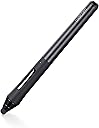


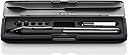

WacomIntuos Creative Stylus for iPad Air, iPad 3/4 and iPad mini
Product ID: 1771875
🎨2048 levels pressure sensitivity
📱Bluetooth 4.0 connectivity
🖊️Palm rejection tech
Desertcart purchases this item on your behalf and handles shipping, customs, and support to Slovakia.
🎉 Elevate Your Art Game with Wacom's Intuos Stylus!
The Wacom Intuos Creative Stylus is a high-performance digital pen designed for iPad Air, iPad 3/4, and iPad mini, featuring advanced pressure sensitivity, palm rejection technology, and seamless integration with popular creative applications. Its premium design and Bluetooth connectivity make it a must-have tool for artists and designers.
T**T
A Great Tool for the iPad Air
The iPad Air's touchscreen isn't intended to be a pressure-sensitive drawing tablet, so to compensate for that Wacom have done something quite clever: placed the sensitivity in the pen. The Wacom Intuos Creative Stylus is a great tool for drawing on the iPad. It contains 2,048 levels of pressure sensitivity, and it works with a lot of the drawing and animation apps currently on the iPad...and when it's not being used for drawing, it's a cinch to realize that it's a generic point-and-tap stylus too.The tip of the Creative Stylus is a rubber cap. You get three with your purchase and as they wear out you can order more. Replacing the tip is fairly simple: unscrew the conical end point, pop off the old rubber cap, and slip on a new one. It's pretty important to do so as soon as you notice wear and tear though: the end is metal, and I would imagine it could quickly scratch up your iPad's screen if you don't have a screen protector.The pen itself is a little bit bulky. It's fairly lightweight but thick to hold, like a child's crayon. That said, the fluted point does make it easy to grip with your fingertips, so long as you remember to keep the buttons rotated out of the way--it's common when you're learning to use the pen to accidentally bump them. The back end of the pen is where you insert the battery, and unfortunately it isn't rechargeable: it's a single AAAA battery, which isn't always easy to find in your local stores.While the Creative Stylus works well with most drawing programs, there are some drawbacks that keep it from being a perfect tool. First is the fact that an iPad simply isn't a drawing tablet: it won't perform as well as a proper Wacom device. This should be fine for most digital artists to a point: if you're a professional doing high-resolution, detailed production work, you're probably going to want to go back to your Wacom Tablet and stick to using the iPad for sketching and other things. There's also the fact that it doesn't (currently) work with Adobe Photoshop for the iPad, though I'm more likely to fault Adobe for that one: if you read reviews, the version of Photoshop that is being offered in the iPad hasn't been doing all that well. It probably has something to do with drawback #3: the Wacom Creative Stylus uses Bluetooth, but doesn't *pair* with your iPad like you'd expect it to. Instead of showing up as a Bluetooth device, it pairs directly with the application, which means you have to go into the application and indicate in the Preferences that you'd like to use the Wacom with it. Most apps tend to remember this setting, though SketchPad has forgotten a time or two and I've had to go back in and re-check the box that selects it.The final drawback is Wacom's beautiful, appealing, and fairly useless website. There is no software with the Creative Stylus and the documentation is just a quick-reference foldout that shows you how to start using it. An actual user guide or FAQ is either nonexistent, or hindered by the fact that Wacom's support site doesn't show the Intuos Creative Stylus as a product you can pick from or search for (and try searching for the word 'Creative'--it's all over the place). I had to learn from forums that the stylus pairs with apps and you shouldn't try to pair it like other Bluetooth devices. I had to guess from trial and error that the pen shuts off when it's out of proximity to the tablet for a certain amount of time and I'm still not sure what that time is. I can't find any information as to whether the buttons can be customized. Last, while the website does say the Creative can run for 150 hours on one AAAA battery, it's been a lot less than that for us--possibly because we're not sure how to manually turn the thing off? It's hard to say.Overall, the Intuos Creative Stylus is a great drawing tool for the iPad. With time and some more supporting information, it would be a lot easier to manage, but I'm still pleased with the feel and function.Unfor
R**R
Good! Wacom should have kept this on the roster.
I was skeptical about all the negative reviews regarding the sensitivity of the stylus and gave this product a try. I trusted the Wacom brand and jumped with two feet without having ever demoed the ICS. I have both iPad mini and iPad mini retina and tested them side by side (I will be posting a video on YouTube soon).Using Procreate - I opened a retina canvas and set all the brushes to their default settings.Using the HB pencil in the Sketching category, I started lightly dragging the tip of the stylus (without any down pressure). On the iPad mini (non retina), it was registering a light pencil line. On the retina mini I could not see any lines being drawn.Switching to Painting and using the Water Brush (full-size, full opacity) I started drawing horizontal lines at visually set margin to see if I can consistently start at the same starting point painting a fine brush stroke. They both required light down pressure to register however with the mini (non-retina) I was able to constantly start at the same line and draw a consistent fine brush stroke across the screen. With the Retina mini it was a little spotty. Often it wouldn't register the light stroke so I had to compensate with more pressure then end up with a fatter paint stroke to start then I'd ease up and loose it again. When I did start at the right mark it was hard to keep the same width..easier to go fatter than a consistent width.I've gotten the pencil to work a little bit better with some tweaks in the brush settings (its not the best solution but sorta helps) - its lucky that Procreate provides this feature! Not so lucky if your favourite drawing editing app doesn't have this feature - or if you like use more than one App on your iPad mini retina. (...yeah...)At the end of it - this stylus works perfectly with my iPad mini (non-retina) as a result I end up leaving all that A7 and retina goodness at home. Its a bit of drag if I'm not just drawing especially knowing theres a perfectly more capable tablet sitting on my desk collecting dust - waiting for the new mini to be released next month!It's not a glowing but its still a recommendation.UPDATEStill works amazingly! I've switched to my iPad retina and simply just got used to it. Battery life is superb. My go to apps with this Stylus are: Notes Plus, Adobe Illustrator Line and Procreate (when I need layers). Still wish it had a slimmer tip as drawing lines require 2-3 strokes to get bang on every time I lift the tip off the screen.
R**.
Serviceable - But Not Professional Grade
I am a freelance illustrator versed in traditional media with aspirations of improving my workflow and turn around times using digital platforms. Unable to afford an actual Cintiq, an iPad and stylus with a "professional" price tag seemed like an excellent compromise.Before I made the decision to purchase, I had it narrowed down to this pen and the Adonit JotPro. Both appeared to have pro-quality pressure responses; both were in the same price range. While I wasn't crazy about requiring AAAA batteries (hadn't heard of them, either), what ultimately sold me was the promised "palm rejection" feature. Heads up: that's not a property of the pen itself. The palm-rejection feature is in-app. If your favourite drawing app doesn't support palm rejection, no dice. You'll be sorely disappointed.Another issue: the Creative stylus' fat-edged tip (which does feel pretty natural across the surface of the screen; as a traditional artist, that was important to me) is almost impossible to get a precise line with. Can't tell where the tip of the pen is making the line. This makes precision details almost impossible.Lack of precision, lack of genuine palm rejection across all apps, and non-rechargeable battery requirement make this a bad buy. I'm steeling myself to throw good money after bad - and get an Adonit.
C**.
Top Quality...
This is an older generation of this model, CS500 , with a bigger rubber tip... however I really like it for use as a drawing tool. The pressure sensitivity is wonderful... quite different from Pencil 53 which I also use... The 6mm tips are readily available on Amazon and the battery is too... like how it goes to sleep... 💤💤The problem I have with the next version CS600 is that one day that internal battery will stop working and it will be useless... atleast with this model you can run it until they stop making AAAA batteries... 😄 or we run out of supported devices...
A**R
Everyhing I expected it to be!
Its great! I was really worried with everyones mixed reviews and such, im using a Ipad Mini 4 with retina display and even with a glass protection screen and it works flawlessly, I kinda wish it came with more nubs or even a extra battery but beyond all that it connects instantly, you can listen to music via bluetooth at the same time with this pen. It actaully tripped me out when I was able to listen to my music and use the pen at the same time! Pressure and all.All and all if you are scared to buy this pen and you have a ipad mini with retina display I highly doubt that'll do anything to hurt how the pen glides and works on your screen.Thanks for reading and I really recommend if you like to draw with pressure sensitivity and all in total making drawing really easy! And it also came it alot faster then I thought and it wad beaten up or anything like that.From a happy buyerAlexander W.
J**Z
Fantastic stylus!
I have to echo the positive reviews of this great tool. I have been using Wacom's bamboo stylus with Procreate for the last year or so and become quite handy with it and have learned to compensate for the lack of pressure sensitivity to a degree with the app's sliders. Having had the weekend to play around with the Intuos, I'm am absolutely delighted! This is, hands down, one of the best purchases that I've made in a long time.It's really the closest thing to working with a Wacom Cintiq on the go without shelling out 1500 to 2000 for the new Companion branded portable versions. If I ever plan to get serious with my digital art, I may consider that investment but until then, Wacom has really come through with a great product for digital art dabblers.Awesome!
C**N
REGULAR
BUENA PRESENTACION DEL PRODUCTO PERO SU FUNCIONALIDAD Y OPERACION NO ES MUY BUENA, PIERDE MUY FACIL LA COMUNICACION CON LOS DISPOSITIVOS Y EL DIBUJO NO ES DE CALIDAD, OPTAMOS POR LA DEVOLUCION
Trustpilot
4 days ago
2 months ago